
Arches Lingo Interactive Demo
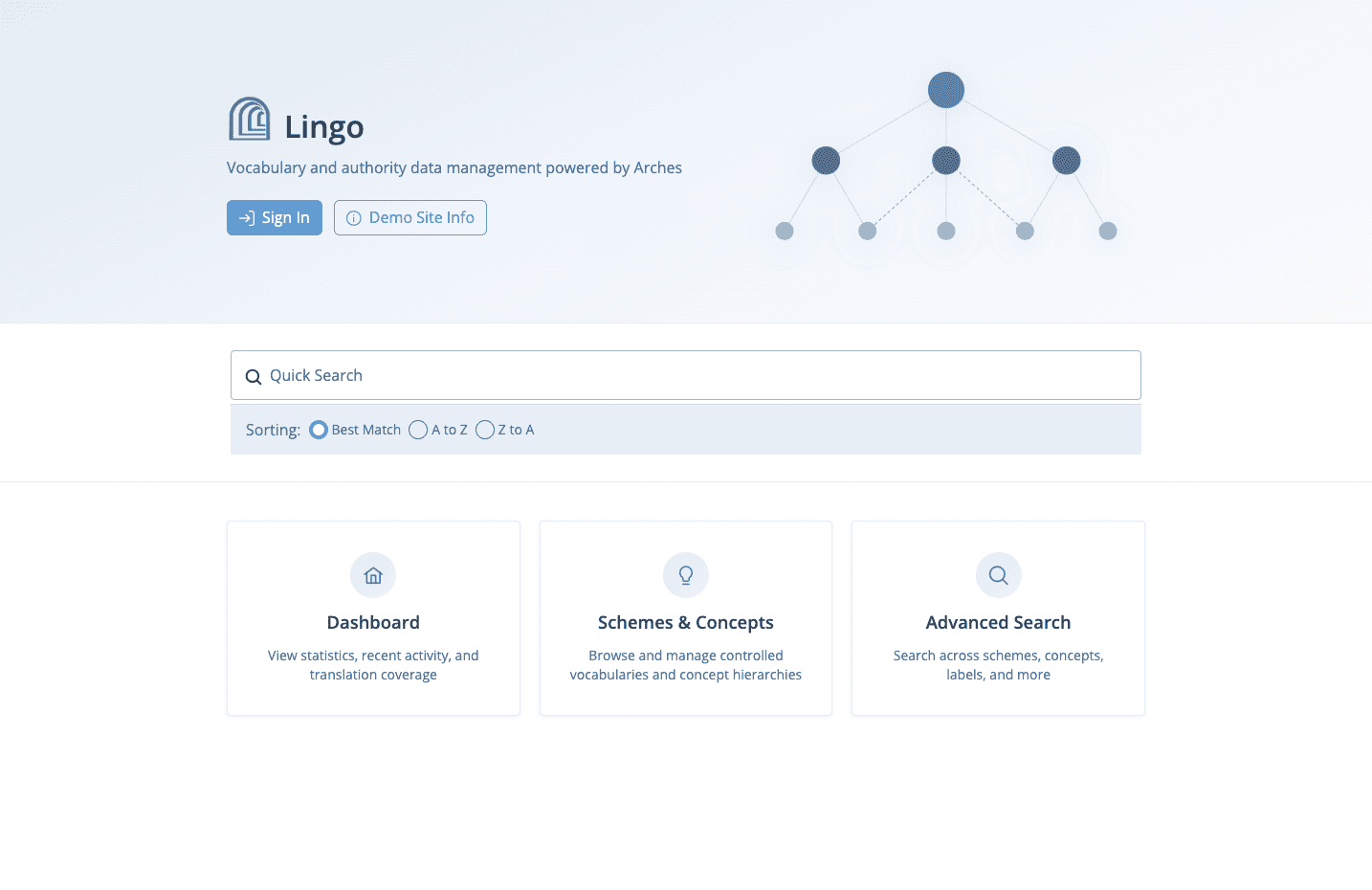
Notes: While visiting the Arches Lingo demo site, you will be automatically logged in to the ‘demo-user’ account, giving you read-only access to explore the site. To access editing functionality, please request an account by emailing us at contact@archesproject.org.
The Arches Lingo demo site will be refreshed on Sundays at 5:00 AM GMT. Any data you enter into the system will be deleted.
JUMP TO: Demo Introduction Videos | Tutorials
The Arches Lingo interactive demo site is based on Arches Lingo, which is a customization of Arches for the creation, management, and dissemination of thesaurus and vocabulary data. In order to capture all data required for cultural heritage vocabulary management, many enhancements were made to the core Arches software, leveraging the existing standards-based data management and web publishing features to better serve vocabulary managers. In addition, Lingo implementers and their users can benefit from some key Arches advantages:
- Arches Lingo, like Arches, is free, open-source software and can accommodate an unlimited number of users with no licensing fees.
- Arches Lingo manages and generates data according to the FAIR principles in order to increase the findability, accessibility, interoperability and reusability of data.
- Arches Lingo is purpose-built and oriented towards cultural heritage vocabulary and thesaurus management, referencing controlled vocabulary use cases and encoding semantic metadata in accordance with Linked Art and the CIDOC Conceptual Reference Model (CRM) standards.
- Arches Lingo is modular software and can be customized and extended to best fit your organization’s policies, processes, and data.
- Arches Lingo implementers and their users are part of the broader Arches open-source community, which represents a large international network of heritage organizations and professionals, knowledge organization specialists, and technical service providers with an established structure for governance and provisions for long-term financial support.
Lingo includes the following features for creating, managing, and disseminating cultural heritage thesaurus and vocabulary data:
- Schemes and Concepts Creator and Editor – UI to create schemes and concepts based on the requirements of terminology specialists, including terminology hierarchies. To learn more, see the “Add a Scheme” and “Add a Concept” tutorials below.
- Robust Context, Including Images – Concept fields support the upload of images for additional context and to enhance educational value. To learn more, see the “Add a Concept” tutorial below.
- Hierarchical Browse – Clearly visualized hierarchies of the full scheme structure provide additional navigational tools including expand/collapse, filter capabilities, and the ability to jump directly to any concept. To learn more, see the “Browse” tutorial and watch the orientation videos below.
- Bulk Concept Import/Export – Concepts can be imported and exported in multiple formats, including SKOS and JSON-LD. To learn more, see the “Add a Scheme” and “Export” tutorials below.
- Full Text and Concept Search – Available in basic search and advanced search with faceted filtering capabilities. To learn more, see the “Search” tutorial below.
- Saved Search and saved search results, for managing lists of terms. To learn more, see the “Search” tutorial below.
- URI Minting – URIs ensure the unambiguous identification of a concept or scheme, and support matching with concepts that are managed in external systems. To learn more more, see the “Add a Scheme” tutorial below.
- Lifecycle States – By default, new instances of a scheme or concept will be in a “draft” state, which represents the initial state in an instance lifecycle. To learn more, see the “Scheme and Concept Lifecycle States” tutorial below.
- User Profiles – With specific user and group permissions, vocabularies can be managed collaboratively.
- Dashboard – Aggregated statistics give a bird’s eye view of the schemes and concepts loaded. The dashboard also shows recent activity and translation gaps. To learn more, watch the orientation videos below.
- Localization – A language selector makes it possible to use the interface in multiple languages and to manage multilingual vocabulary data. To learn more, see the “Localization” tutorial below.
Demo Data
The Arches Lingo demo site currently contains data from three sources:
- UK Forum on Information Standards in Heritage (FISH) Thesauri – Several vocabularies were generously provided to the Arches Lingo demo site for evaluation purposes by the Forum on Information Standards in Heritage (FISH), which manages over 20 vocabularies used across the cultural heritage sector in the United Kingdom. Within the Arches Lingo demo site, the FISH vocabularies are editable, allowing users to explore the various features of Lingo. Because these vocabularies are open to modification and a snapshot in time of recent data, they should not be treated as authoritative. To access the official FISH vocabularies, please visit: https://heritage-standards.org.uk/fish-vocabularies/
- Getty Art & Architecture Thesaurus® (AAT) – The AAT is created and maintained by the J. Paul Getty Trust, and used under the Open Data Commons Attribution License (ODC-By) 1.0. This copy was extracted on August 1, 2026, and will be updated to the most recent version of the AAT periodically. Within the Arches Lingo demo site, the AAT scheme is configured to be locked, so it cannot be edited. It’s included only to demonstrate navigating, searching, and matching across vocabularies. A change to the AAT was made: the top-level (“Top of the AAT hierarchies”) was omitted to avoid confusion within the scheme’s structure. As a fixed snapshot from the load date, it may not reflect the current, live version, and should not be treated as authoritative. To access the official AAT, please visit: https://www.getty.edu/research/tools/vocabularies/aat/
- GEneral Multilingual Environmental Thesaurus (GEMET) – GEMET, version 4.2.3, is created and maintained by the European Environment Agency (EEA) and Eionet, and used under the Creative Commons Attribution 4.0 International License (CC BY 4.0): https://creativecommons.org/licenses/by/4.0/. Within the Arches Lingo demo site, the GEMET scheme is configured to be locked, so it cannot be edited. It’s included only to demonstrate navigating, searching, and matching across vocabularies. Changes to add GEMET to Lingo were made: GEMET data was converted to the Arches Scheme/Concept model and GEMET’s grouping collections (themes and groups) were omitted. The EEA and Eionet do not necessarily endorse this adaptation. As a fixed snapshot from the load date that omits grouping collections, it does not represent the current, live version, and should not be treated as authoritative. To access the official GEMET vocabulary, please visit: https://www.eionet.europa.eu/gemet/en/alphabetic/
Disclaimer: The Arches Lingo demo site is for evaluation purposes only. The vocabularies loaded in the demo should NOT be treated as an authoritative source.
Demo Roadmap
The Arches Lingo demo site will be updated continuously to reflect ongoing development of the Arches Lingo application. If you have any questions or comments about the Arches Lingo demo site, please post on the Arches Community Forum using the arches-lingo tag. If you find an error or bug or if you have a suggestion for a new feature or enhancement, submit an issue via the Arches Lingo GitHub repository.
| Release Date | Arches Lingo version | Arches Version | Notes |
|---|---|---|---|
| 7/31/2026 | Arches Lingo v1.1.2 | v8.1.3 | Initial release |
DEMO INTRODUCTION VIDEOS
The following Arches Lingo Demo Orientation video introduces navigating, browsing, and searching the Arches Lingo demo site as a read-only user.
An orientation of the Arches Lingo user interface and read-only functionality.
Next, watch the Arches Lingo Demo Walkthrough for a live demonstration covering adding concepts, matching concepts to external vocabularies, advanced search, saved searches and sets, and publishing schemes.
A demonstration of Arches Lingo from the perspective of a vocabulary editor, presented live by Rob Gaston (Farallon Geographics) at the Getty Conservation Institute for the Arches Lingo v1.0 launch, May 6, 2026.
TUTORIALS
The Arches Lingo demo site provides a great way to see how Lingo streamlines the creation, management, and publishing of controlled vocabularies. The following tutorials highlight basic features such as browsing and searching; common vocabulary editor/contributor tasks of creating, importing, and editing schemes and concepts, as well as adding reference data; and vocabulary administrator tasks like publishing schemes and moving them through the lifecycle states.
Browse
Schemes & Concepts Page
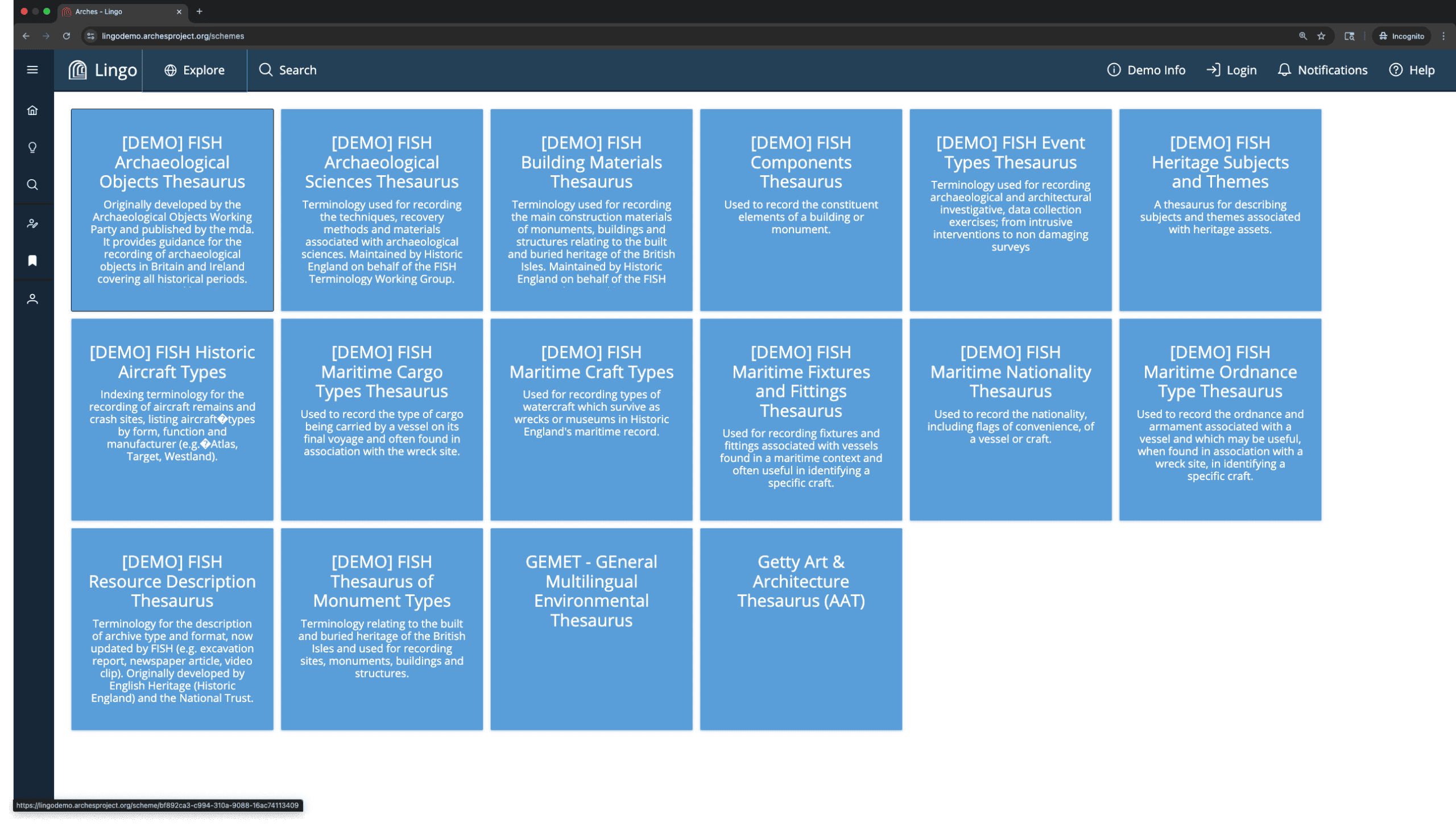
The Schemes & Concepts page lists all vocabularies loaded into Arches Lingo. Clicking on a scheme opens the scheme report for more details.
→ Go to the Schemes & Concepts page.
Explore Panel
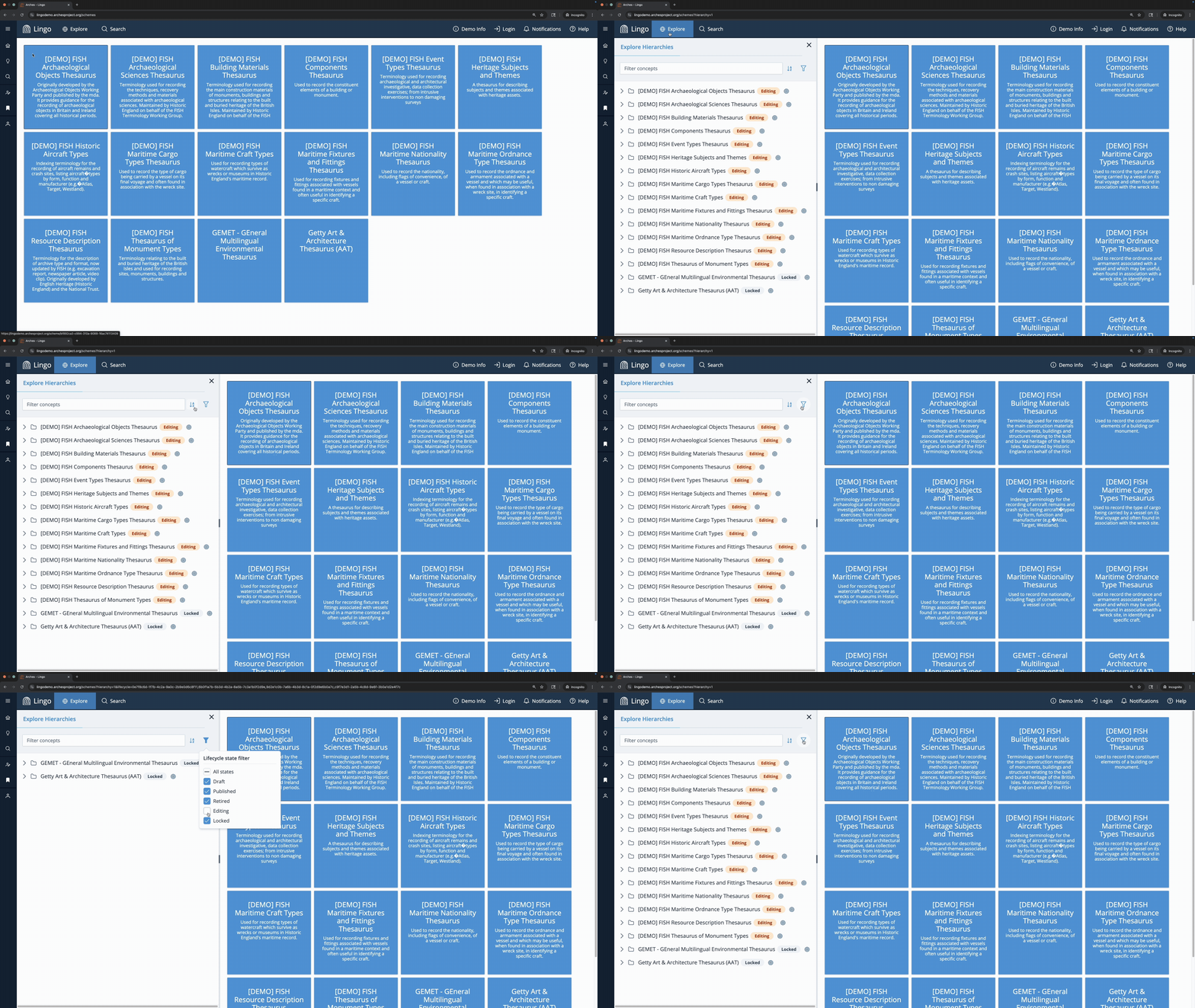
Click Explore to open the Explore panel, which shows the hierarchical structure of all schemes loaded into Arches Lingo.
Schemes are sorted alphabetically by default. Click the sort icon  to switch between ascending and descending order.
Click the lifecycle-state filter icon  to show only schemes and concepts in a specific state (draft, editing, published, or retired). Learn more in the “Scheme and Concept Lifecycle States” tutorial.
→ Open the Explore panel. Change the sort order.
Expand & Collapse
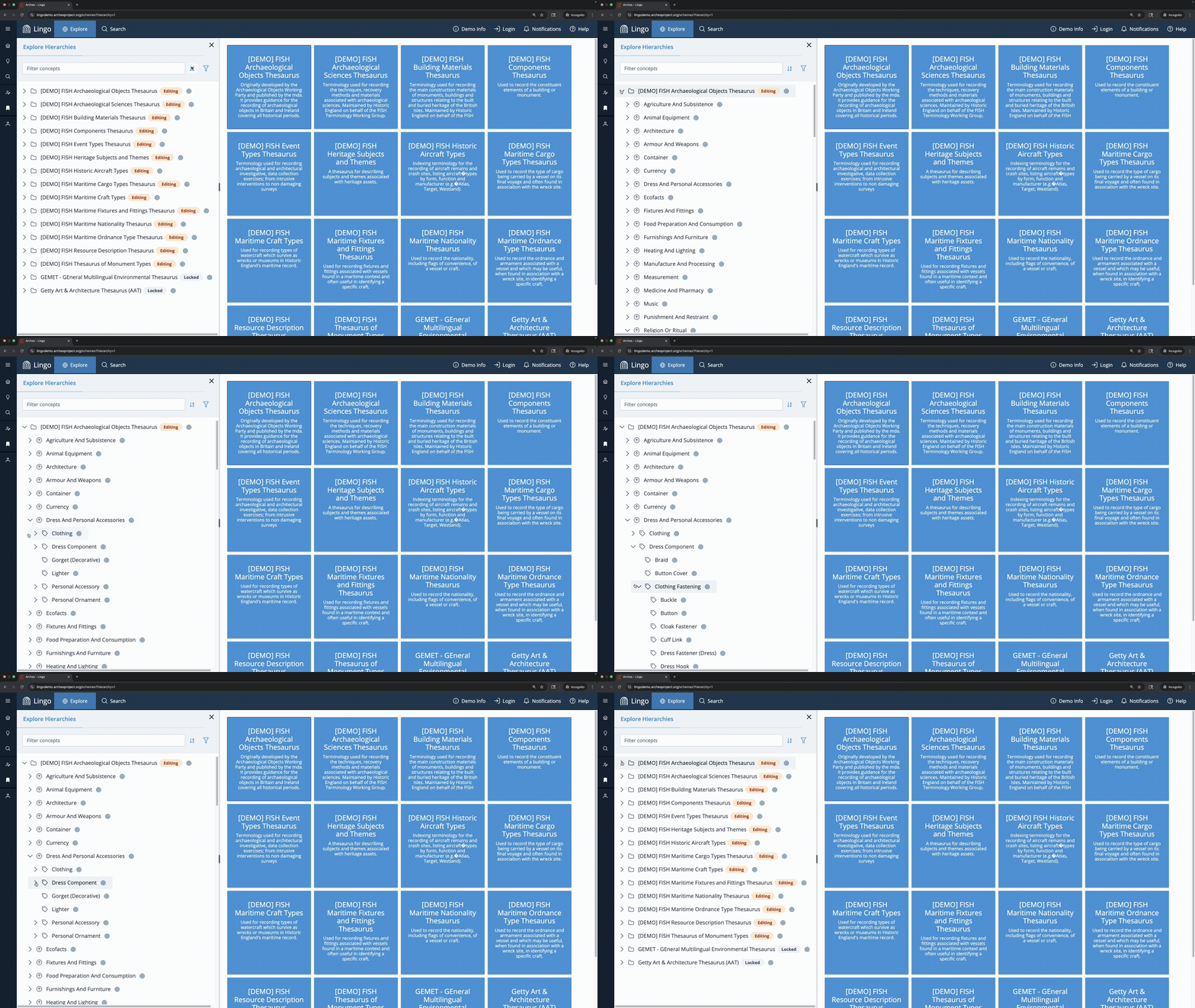
Click the arrow icon  next to a scheme to reveal its top concepts. Continue to expand concepts to drill down into the scheme’s hierarchy. Click an arrow again to collapse the scheme or concept.
→ Expand the FISH Archaeological Objects Thesaurus scheme and the following concepts: Dress and Personal Accessories > Dress Component > Clothing Fastening
Focus & Unfocus
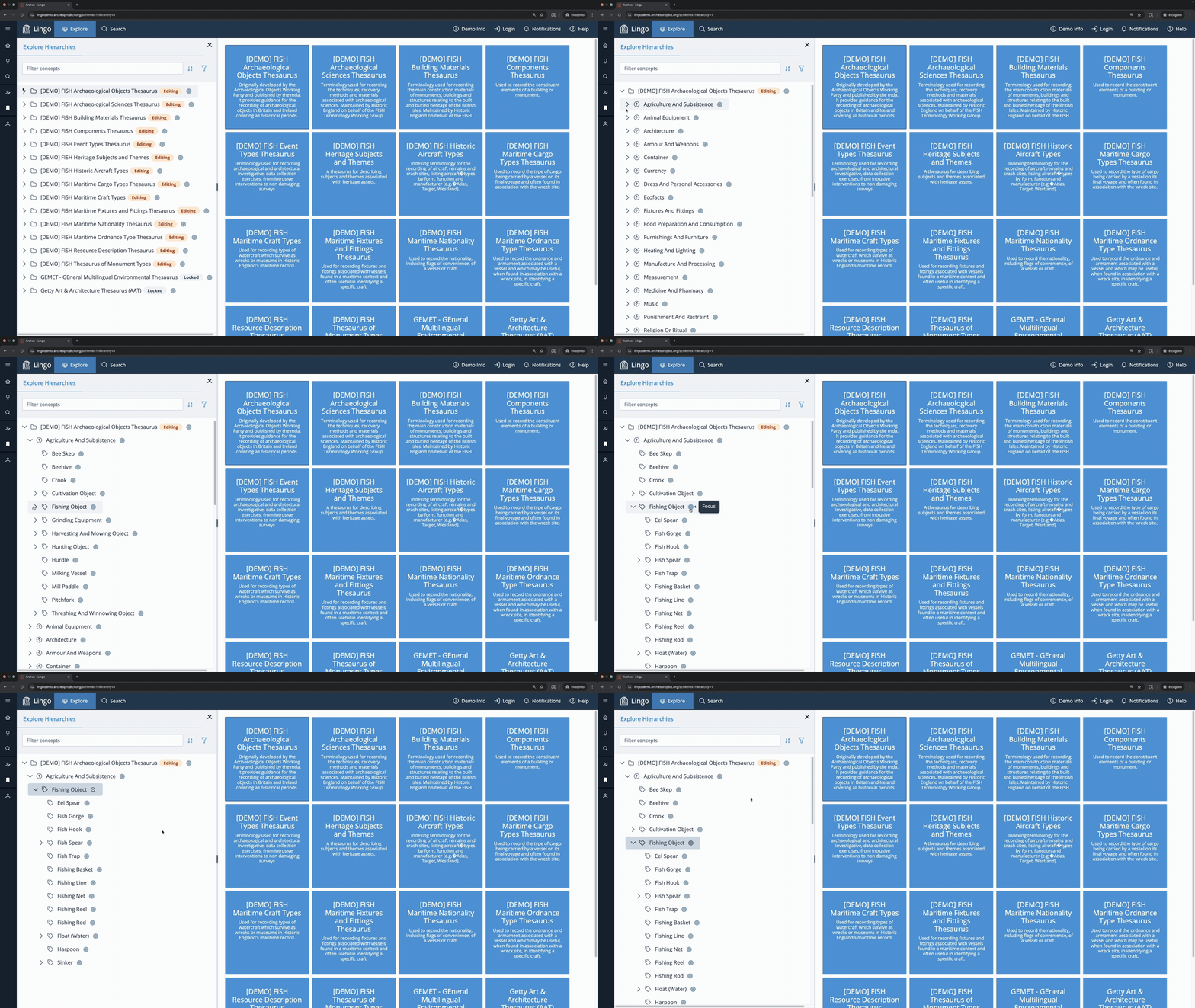
Click the target icon  next to a scheme name to focus on that scheme, showing only its children. Focusing on a concept shows its children, as well as all parents. Click the magnifying glass icon
  to unfocus.
→ Expand the Agriculture and Subsistence top concept in the FISH Archaeological Objects Thesaurus and focus on the Fishing Object concept beneath it. Unfocus.
Filter
Use the text filter in the Explore panel to search on preferred, alternative, and hidden labels within schemes and concepts you’ve expanded at least once during your current session. Matches show their full hierarchical path; anything that doesn’t match is hidden from view.
Because these vocabularies are large, the Explore panel loads data piecemeal, only as each branch is expanded. For a full search across all schemes and concepts, use Quick Search or Advanced Search.
→ Filter on “fishing,” “dress,” and “button.”
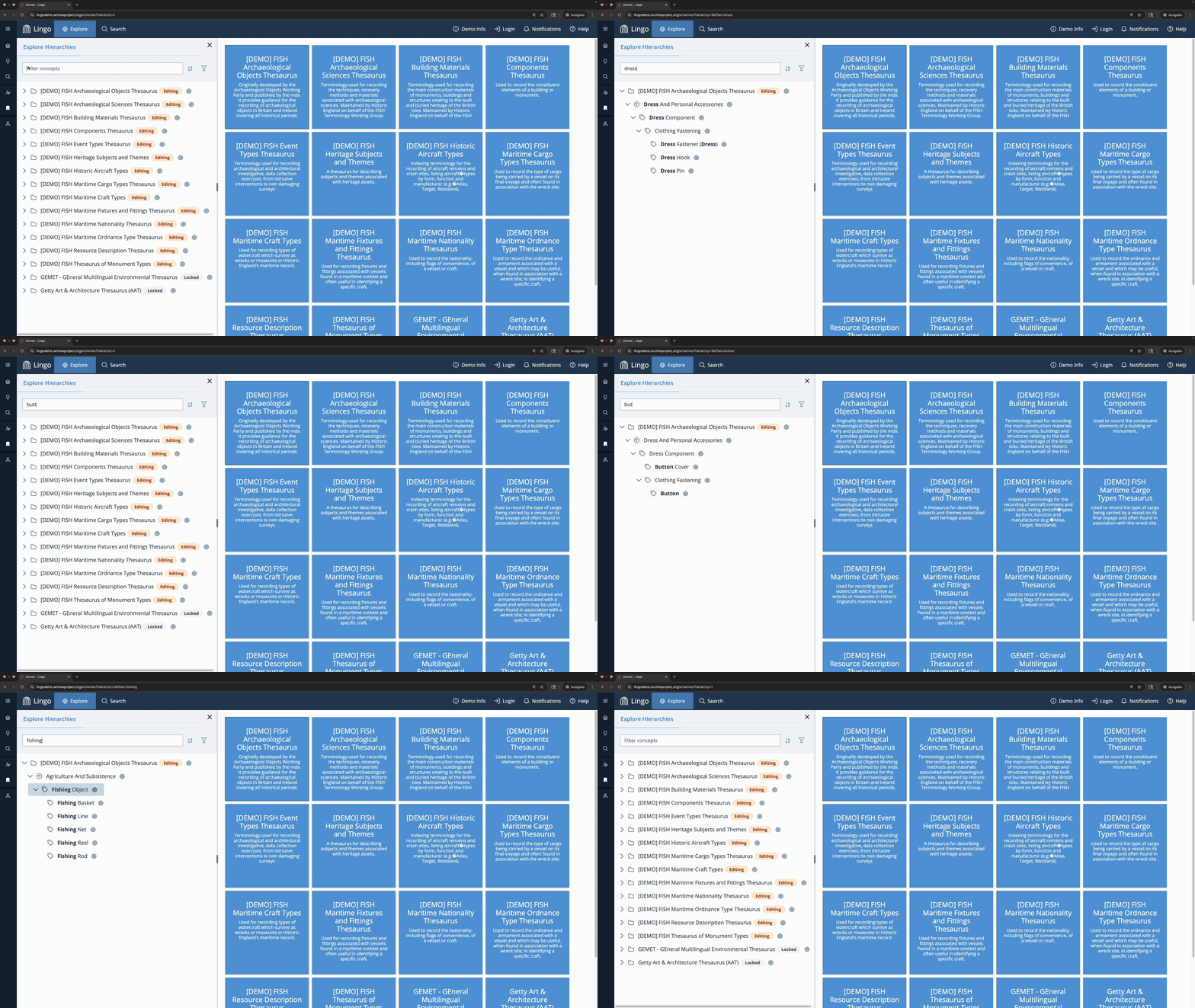
Here you can see that only concepts revealed previously are shown in the results.
Search
Arches Lingo allows for search and discovery across all schemes using Quick Search and Advanced Search.
Quick Search finds an exact term fast, and surfaces the full range of matches when your term is ambiguous or has multiple meanings. If you’re looking to narrow a broad group of similar concepts down to a precise set, Advanced Search‘s field-, language-, and exclusion-based conditions give you that control.
Quick Search
Quick Search allows you to search by a concept’s preferred, alternative, and hidden labels across all languages using fuzzy matching, which helps surface relevant results, even with typos, partial terms, or close variants. Results include a breadcrumb path showing where each concept sits within a scheme hierarchy, helping distinguish between concepts with similar preferred labels.
To access Quick Search, click Search in the top menu bar. Alternatively, click Lingo to return to the splash page where you find another access point for Quick Search.
→ Click Search in the top menu bar. Search for the term “plate.”
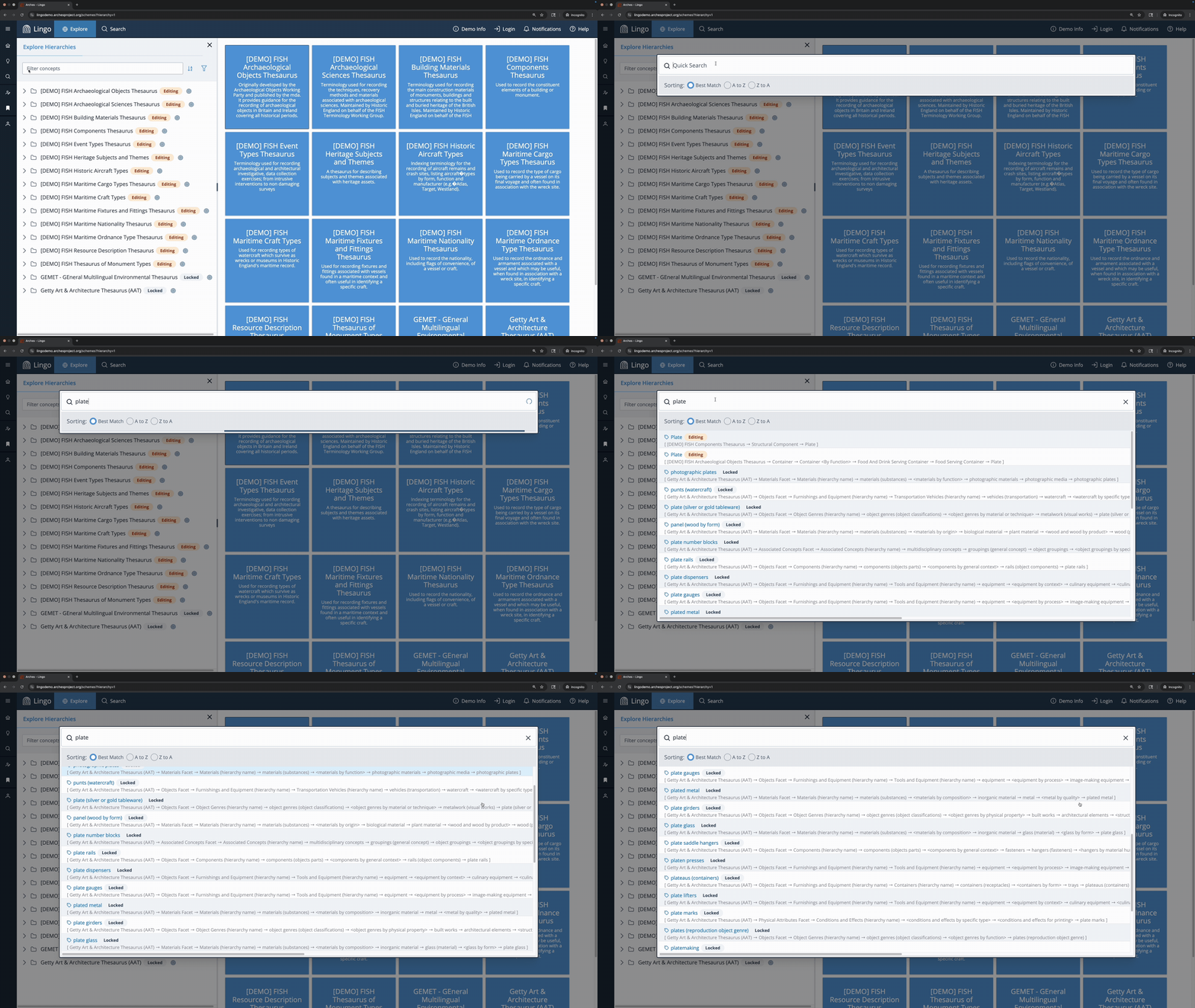
The search surfaces results with “plate” in the preferred label (tableware, structural components, photographic materials), but also unearths concepts like “punt,” a type of watercraft, for which “plate” is the preferred label in French, and “plateau,” a landform, since it contains the string “plate.”
You can sort results by best match or by ascending/descending concept label. Concepts are sorted by whichever label matched your search, whether it’s a preferred, alternative, or hidden label. If the match is on an alternative label, hidden label, or a preferred label in another language, the preferred label in your display language still shows as the result’s display term.
→ Click A to Z to sort the results for “plate” in ascending order.
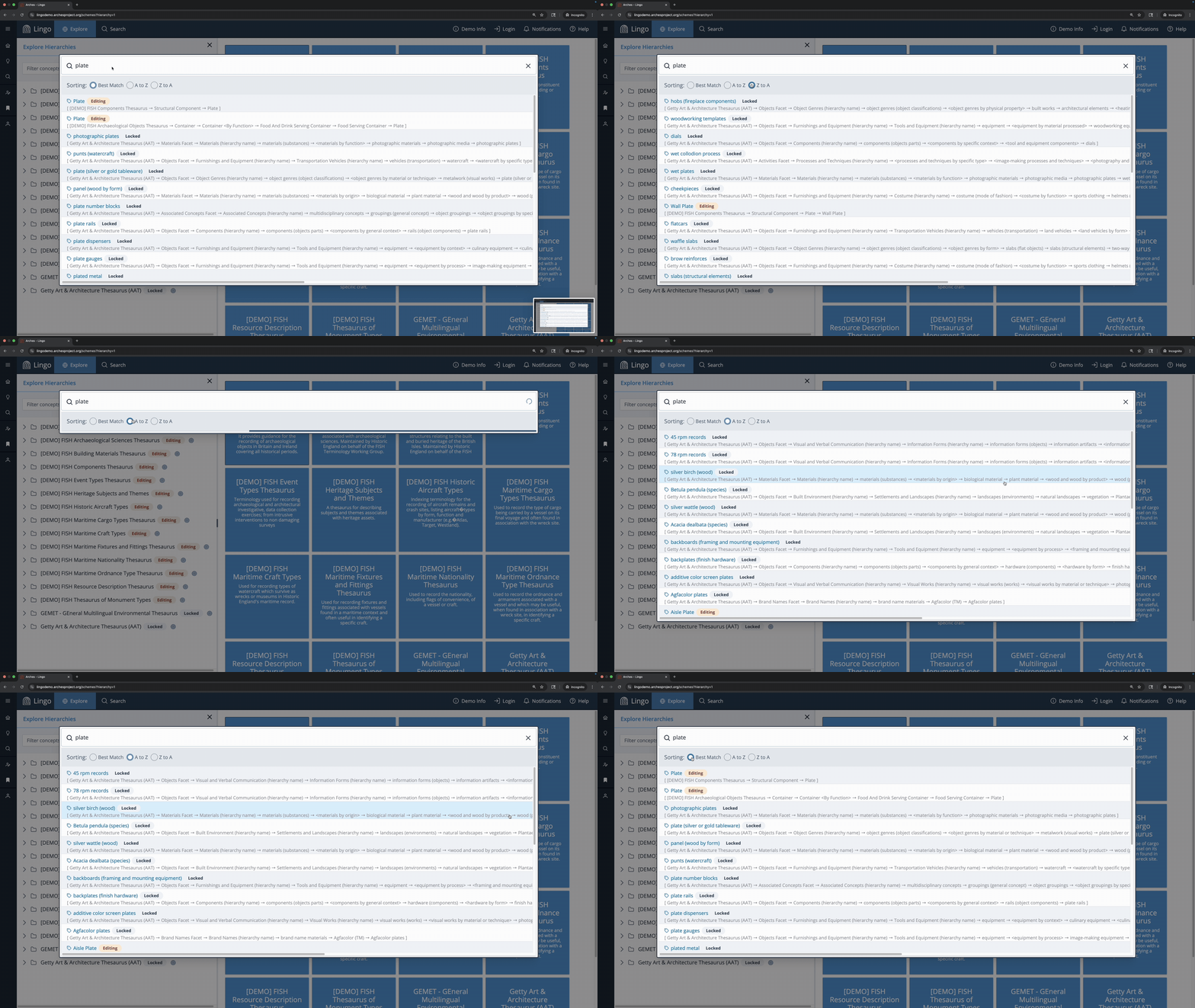
Sorting the results for “plate” in ascending order reveals the AAT concept “silver birch (wood),” which does not seem related to any of the common uses of the term “plate.” This is because the Spanish preferred label for the concept is “abedul plateado (madera),” which contains the string “plate,” causing the concept to be sorted by the “a” in “abedul.” Because fuzzy matching casts a wide net, results sorted alphabetically may not always appear in the order you’d expect. For most searches, sorting by best match gives you the most useful ordering.
→ Sort the results by Best Match and select the “plate” concept from the FISH Archaeological Objects Thesaurus to open the concept report.
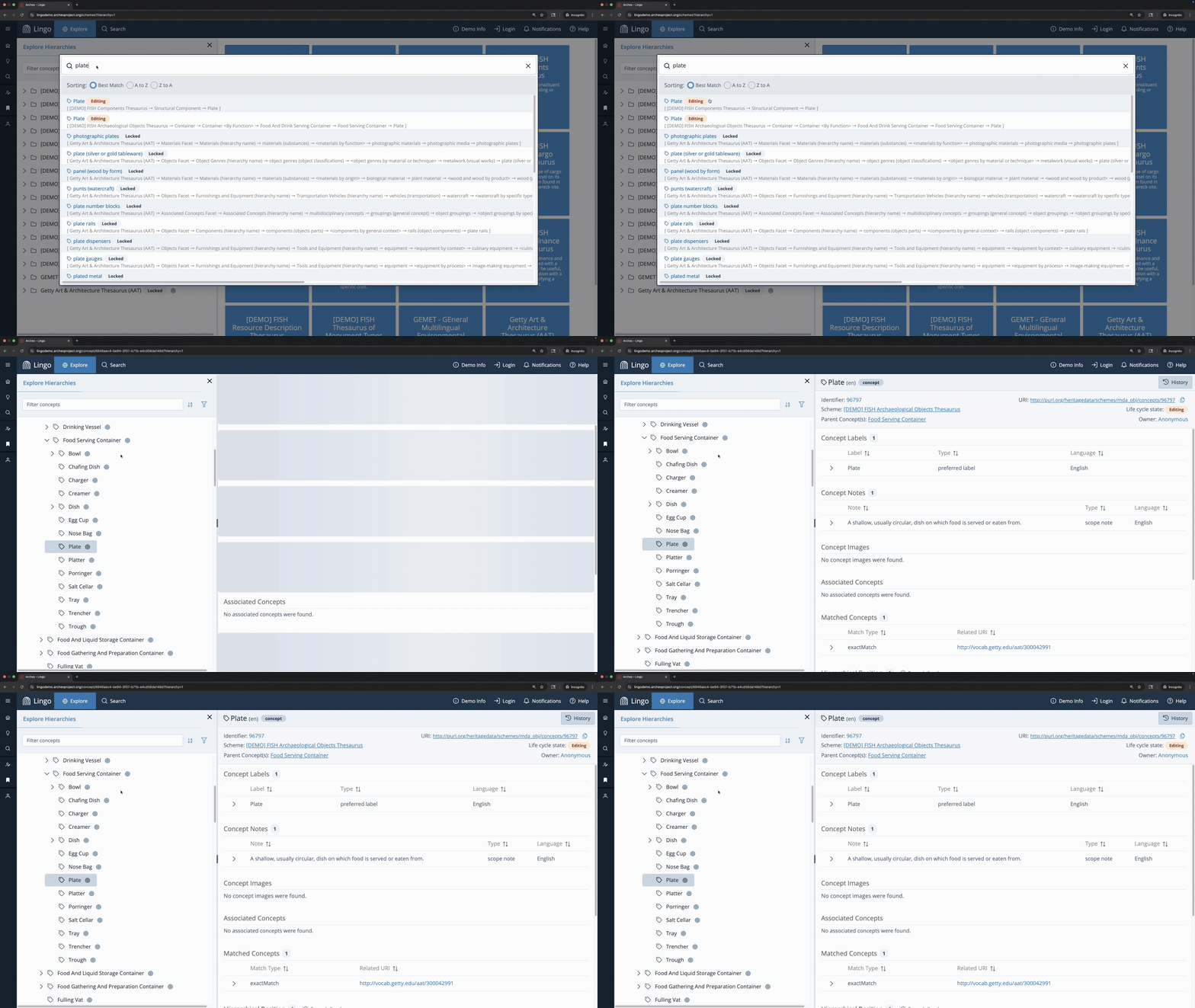
The concept’s position is highlighted in the Explore panel. Here you can see that the concept “Plate” in the FISH Archaeological Objects Thesaurus sits under the parent concept, “Food Serving Container,” and is siblings with concepts such as “Bowl,” “Dish,” and “Platter.” Since Lingo is a standard web application, you can use your browser’s back button to return to your search results, or open results in a new tab to view multiple concepts side by side.
Advanced Search
Advanced Search allows you to build complex queries using multiple conditions combined with AND/OR logic.
Each condition targets a specific field–label, note, language, concept type, hierarchical relationship, associated relationship, matched URI, URI, scheme, top concept, identifier, lifecycle state, concept set, source, contributor, or related image–with either a text search or a dropdown, depending on the field.
Toggle “NOT” on any condition to exclude matches instead of including them. Click Add Condition to add new conditions and combine them using AND/OR logic. Click the red “x” next to a condition to remove it. Click Search to run your query.
→ Build the following query to search for concepts with an English label of “plate” AND NOT an English label of “plateau.” Click Search.
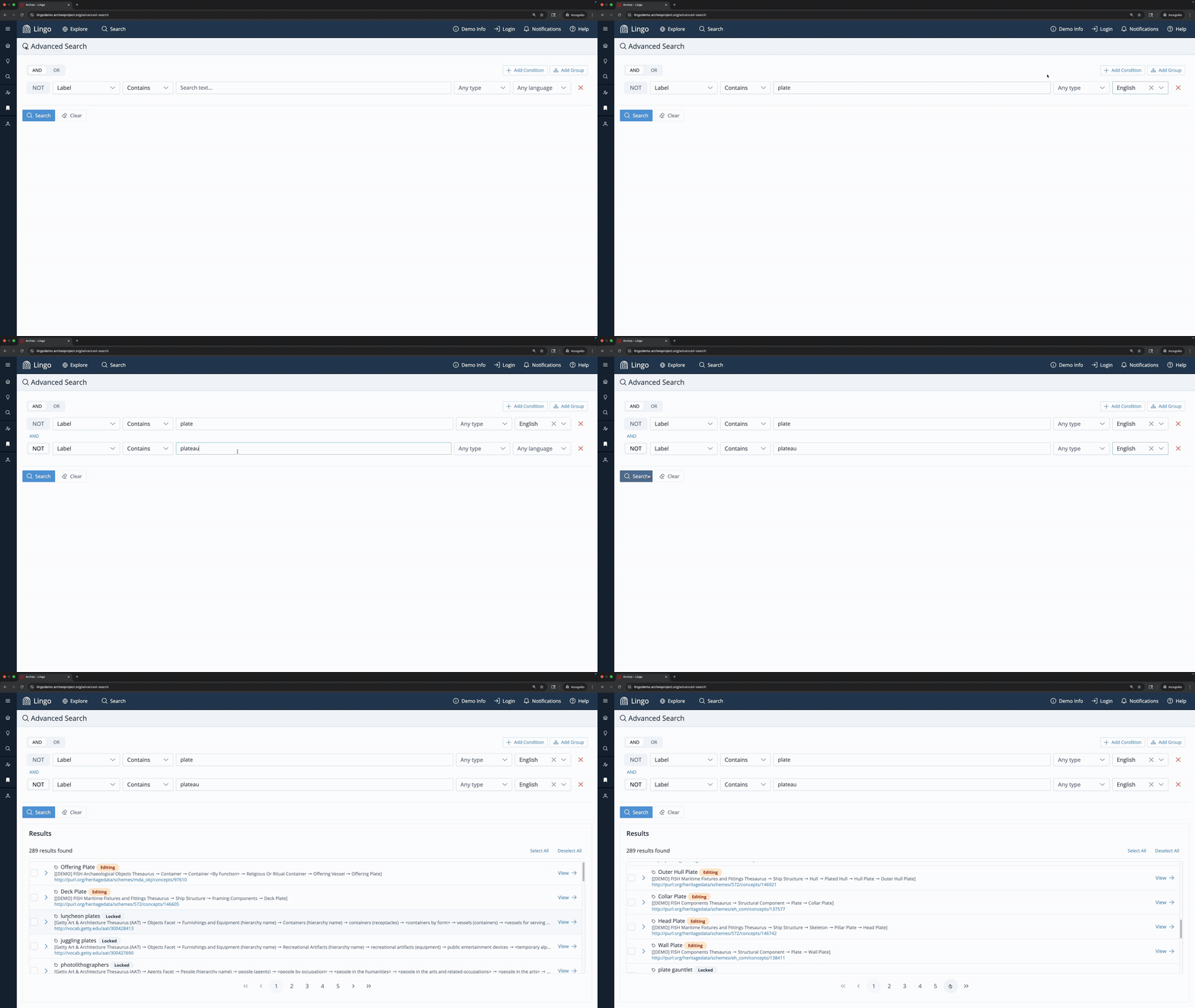
Results show the hierarchy breadcrumb path to help disambiguate concepts with similar labels. Narrowing to a single field and language cuts out unintended cross-language matches. Excluding the term “plateau” removes several unrelated concepts (including landforms and regional styles), helping narrow toward a more tableware-focused result set.
You can alter your query and run a new search, or click Clear to start fresh.
To combine both AND and OR logic in a single query, click Add Group. Click Add Condition within a group and specify AND or OR both within and outside of the group. Groups can be nested within groups. Click the red “x” next to a group to remove it. Click Search to run your query.
→ Click Clear and build the following query to find concepts that are nested under the AAT concept “culinary containers” (be sure to change from “Direct only” to “Include all” so that all children are included in the results) AND (grouped together) have an English label containing “plate” OR an English note containing “plate.”
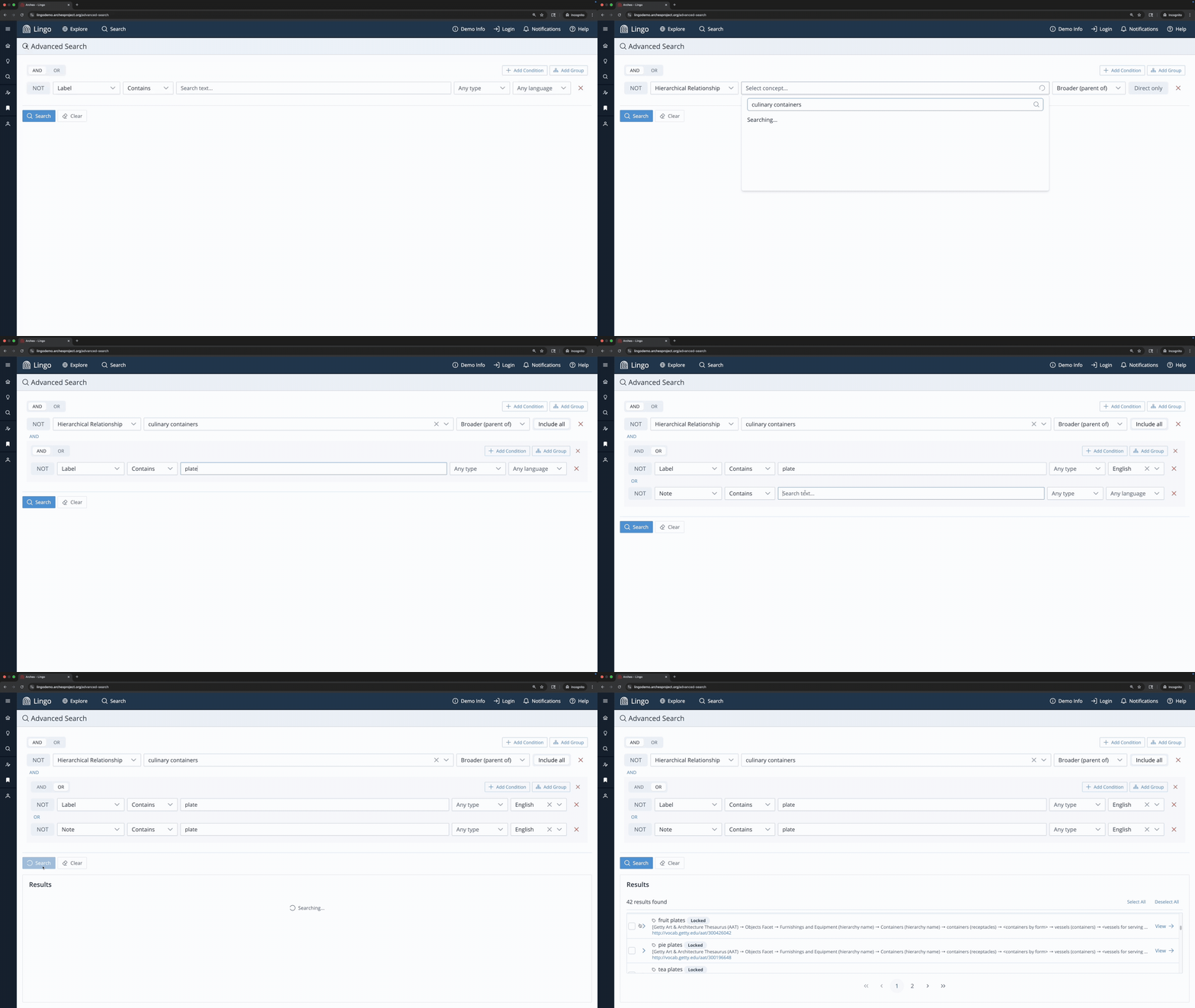
Here we see a more focused search, thanks to the ability to hone in on a specific part of the AAT and to search on concept notes as well as labels.
Along with hierarchy breadcrumb paths, clicking the arrow next to a result reveals its concept identifier and any concept notes. Click View to open the full concept report in a new tab.
→ Find the concept “twiffler” in the results and click View to view the concept report.
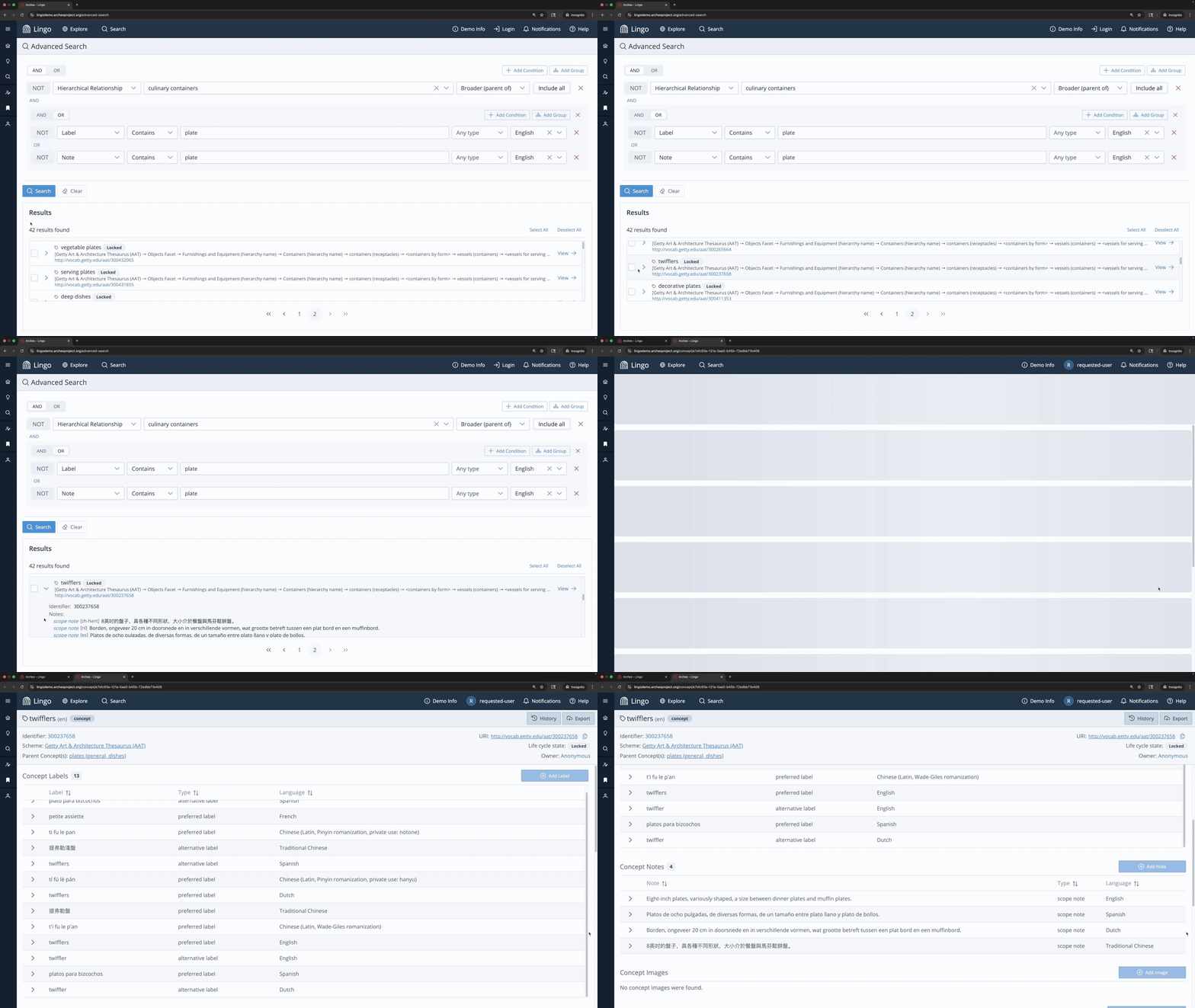
Here you can see that none of the “twiffler” concept labels contain “plate” at all. Only its scope note identifies it as a type of small plate (sized between a dinner and muffin plate). Searching on notes as well as labels can surface concepts that would typically be missed.
Saved Searches
(Requires an account with editing functionality)
Arches Lingo allows you to save a query to rerun later, or to use as a starting point for a complex query you’ll want to adjust in the future, avoiding the need to rebuild similar queries from scratch.
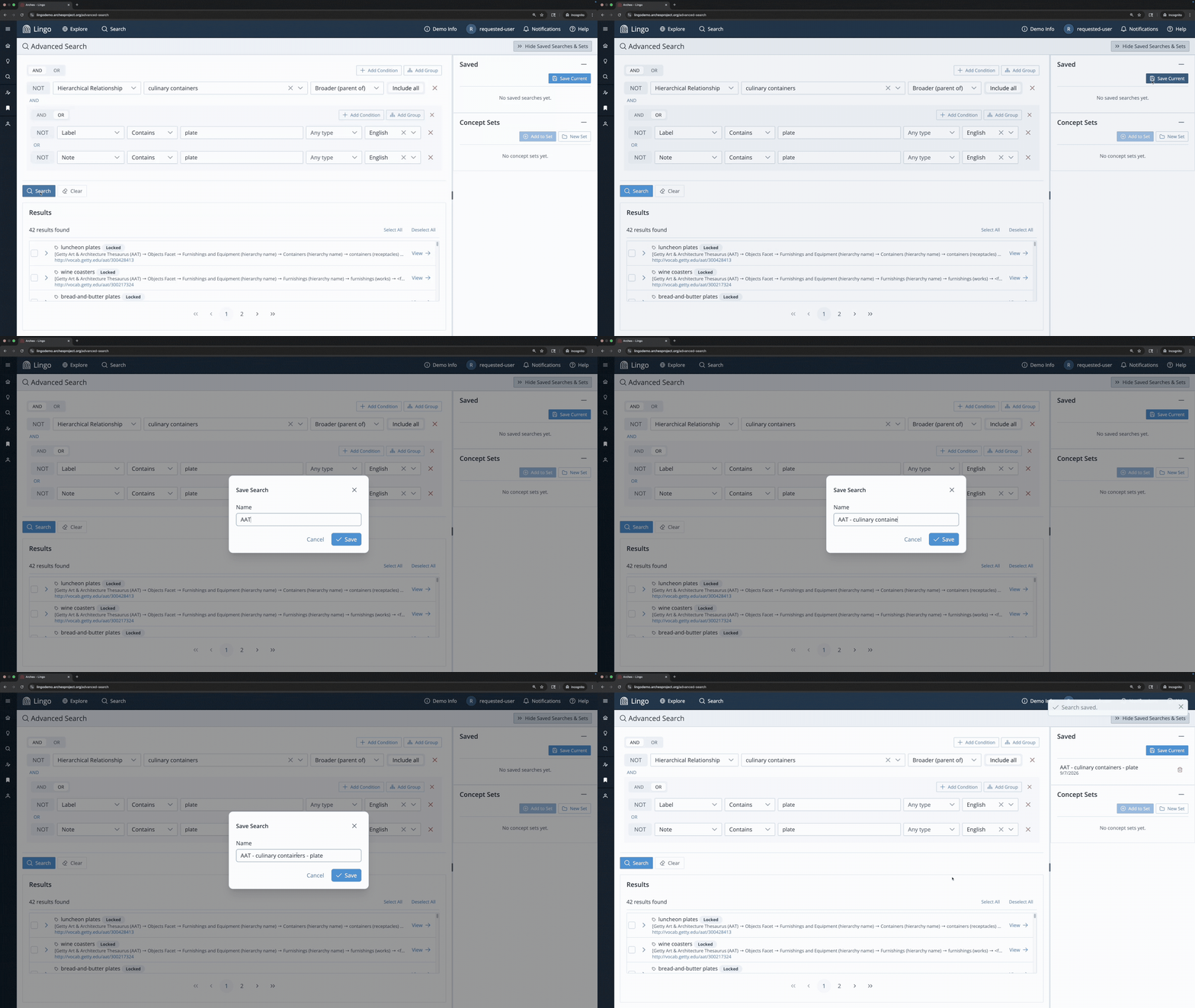
After building a query, click Save Current and enter a name for the Saved Search. Saved Searches are listed under Saved in the collapsable Saved Searches and Sets panel on the right. Click on a Saved Search to pull up the query and click Search to run it. Changes made to the query do not affect the selected Saved Search. To save changes to the query, click Save Current to create a new Saved Search. Click the red trash can icon  next to a Saved Search to permanently delete it. Saved Searches are only visible to individual users and are not shared across accounts.
→ With the AAT plate query still open in your first tab from the previous step, click Save Current and name it “AAT – culinary containers – plate.”
→ Click Clear. Select the “AAT – culinary containers – plate” Saved Search to pull up the query. Click Search to run the query again.
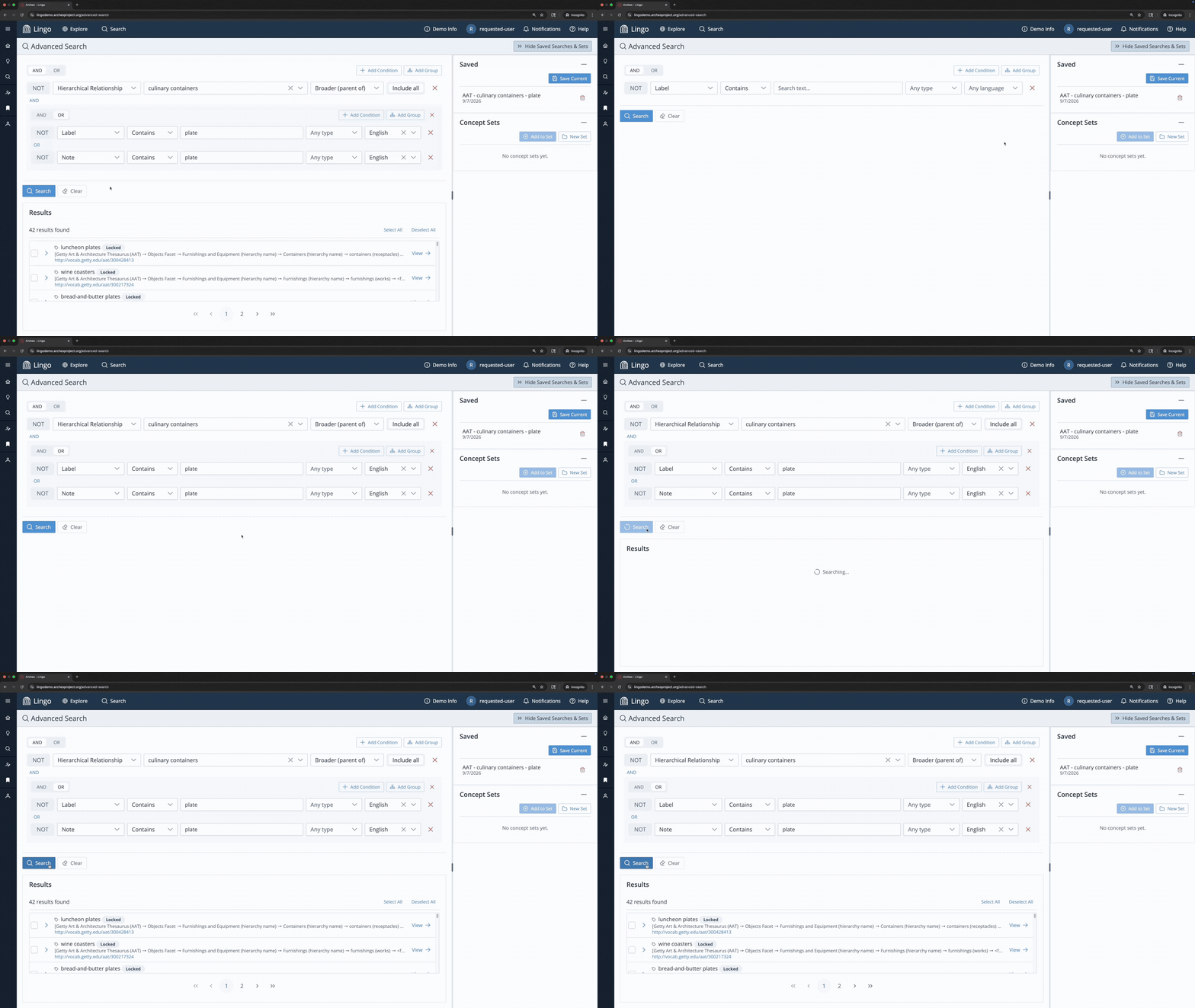
Note that the results of a Saved Search may be different over time as changes and updates are made to your schemes. If you wish to preserve the results from a specific search, a saved Concept Set (covered in the next section) is more appropriate.
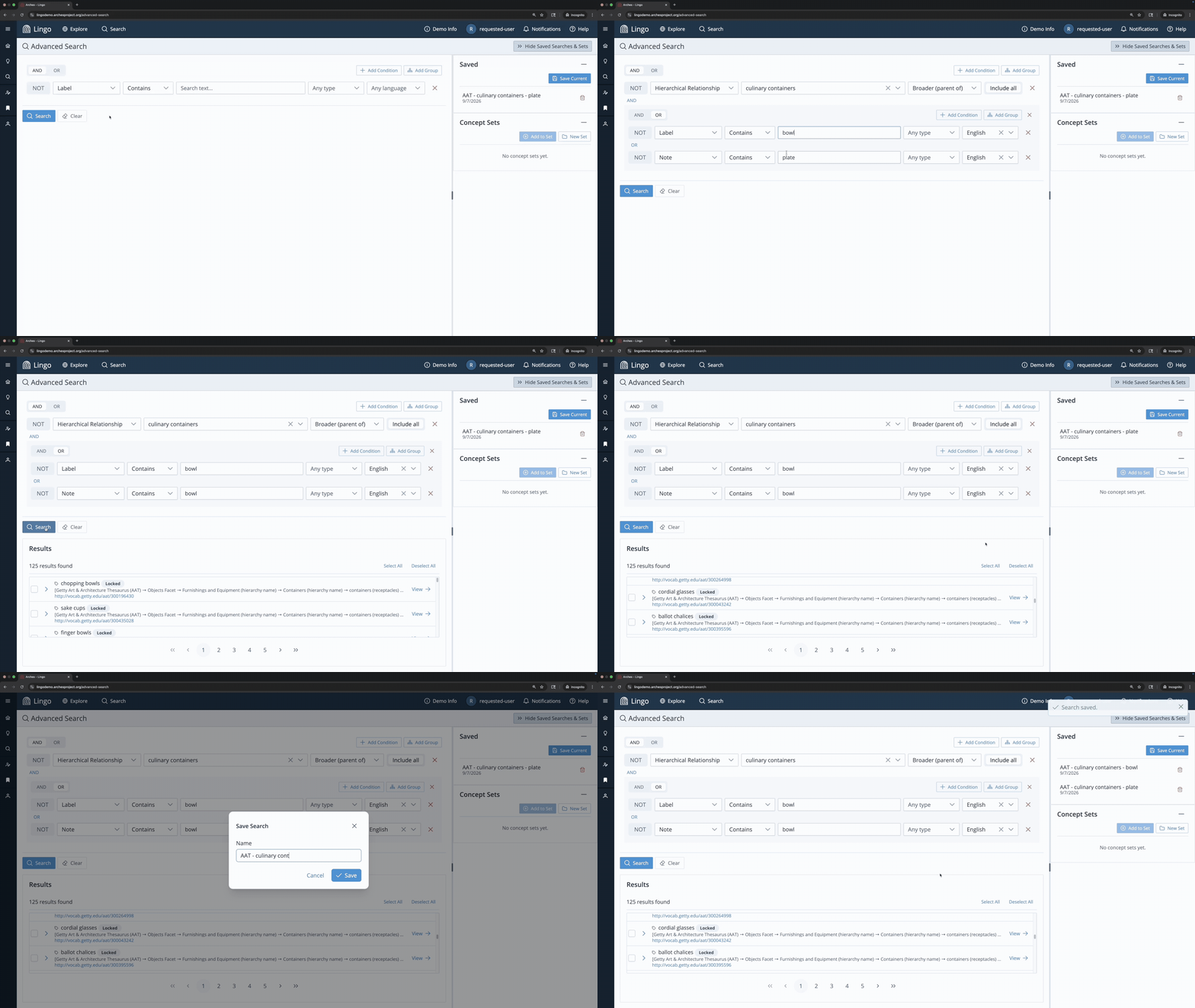
You can use a Saved Search as a starting point to build a similar query.
→ Select the “AAT – culinary containers – plate” Saved Search and change “plate” to “bowl” in both conditions and click Search. This does not alter the Saved Search. To save these changes for future use, click Save Current and name it “AAT – culinary containers – bowl.”
Concept Sets
(Requires an account with editing functionality)
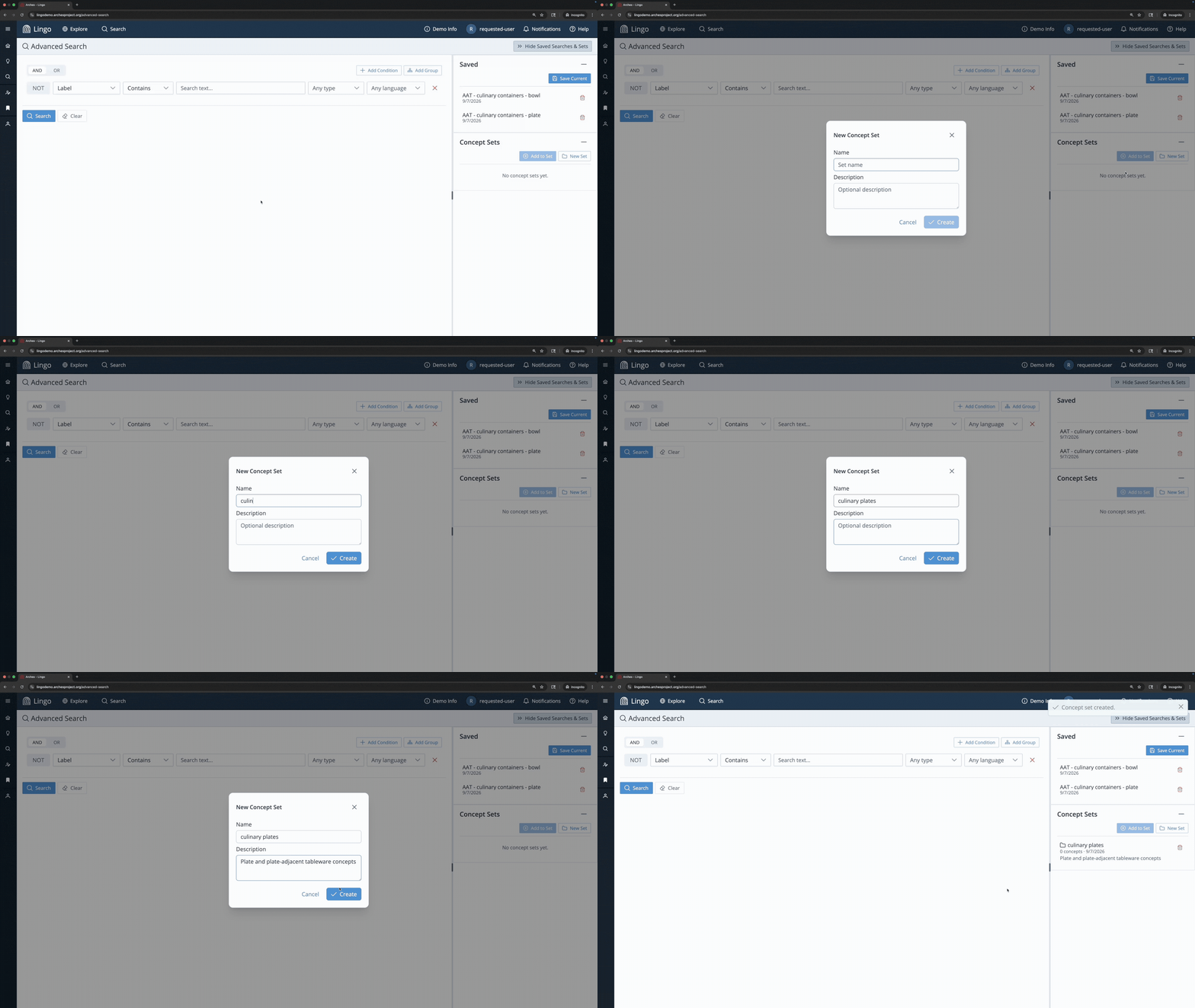
Arches Lingo allows you to save a set of concepts for future reference. Click New Set under “Concept Sets” the Saved Searches and Sets panel. Name the set, optionally give it a description, and click Create. The Concept Set will appear under “Concept Sets” in the panel.
→ Click New Set, name the set “culinary plate,” and give it a description.
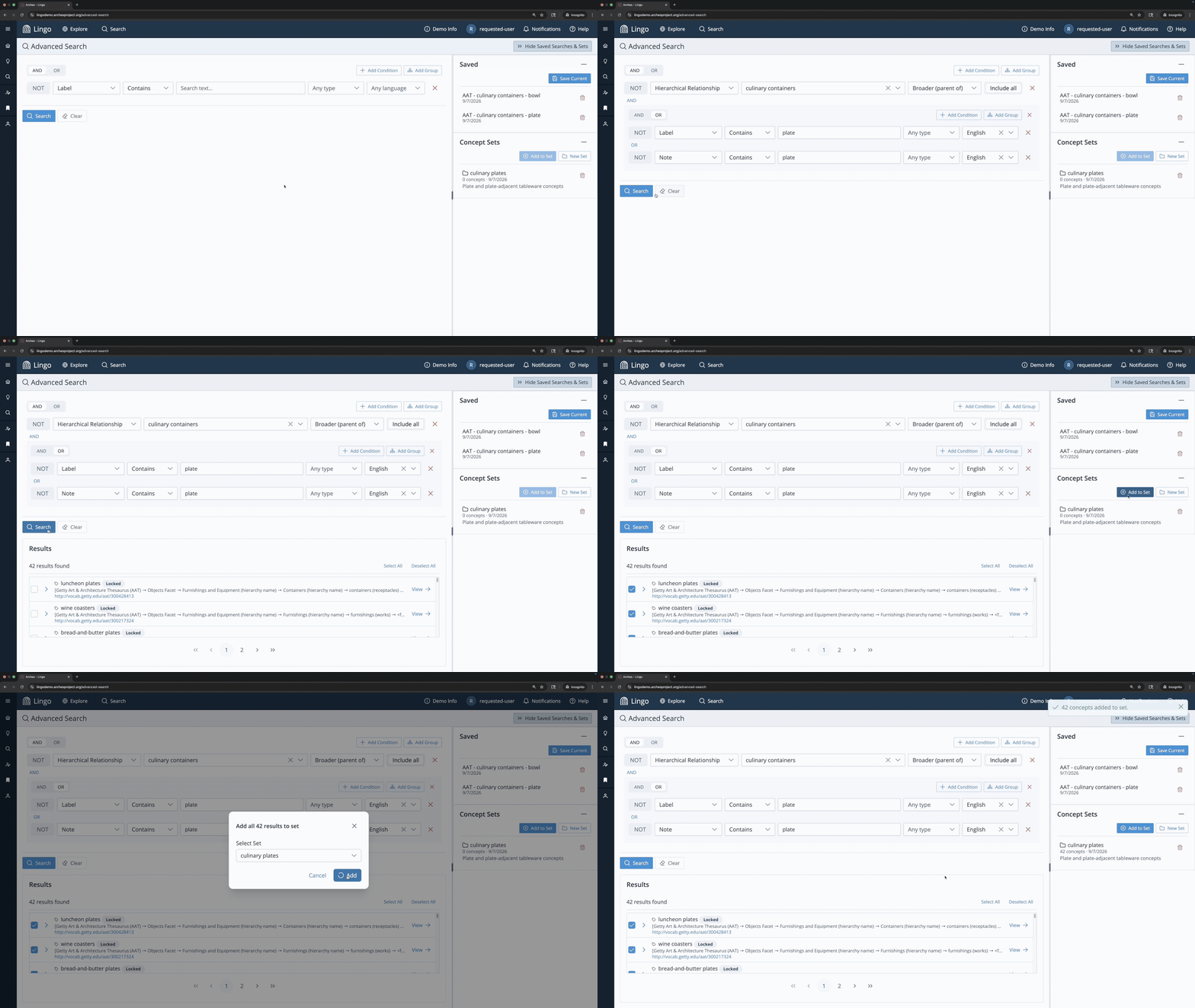
Perform an advanced search, then use the checkboxes to select the concepts you want to add – or click Select All to select every result, or Deselect All to clear your selection. Click Add to Set, choose the Concept Set from the dropdown, and click Add. Click Deselect All before running another advanced search to avoid adding unwanted concepts to this or another Concept Set.
→ Run the “AAT – culinary containers – plate” search again, click Select All, and add the results to the “culinary plate” Concept Set.
Click a Concept Set to view its contents. To remove a concept, select it and click Remove from Set. Click Deselect All before adding or removing additional concepts to this or any other Concept Sets.
→ Open the “culinary plate” Concept Set, select the “flatware-cases” concept, and click Remove from Set.
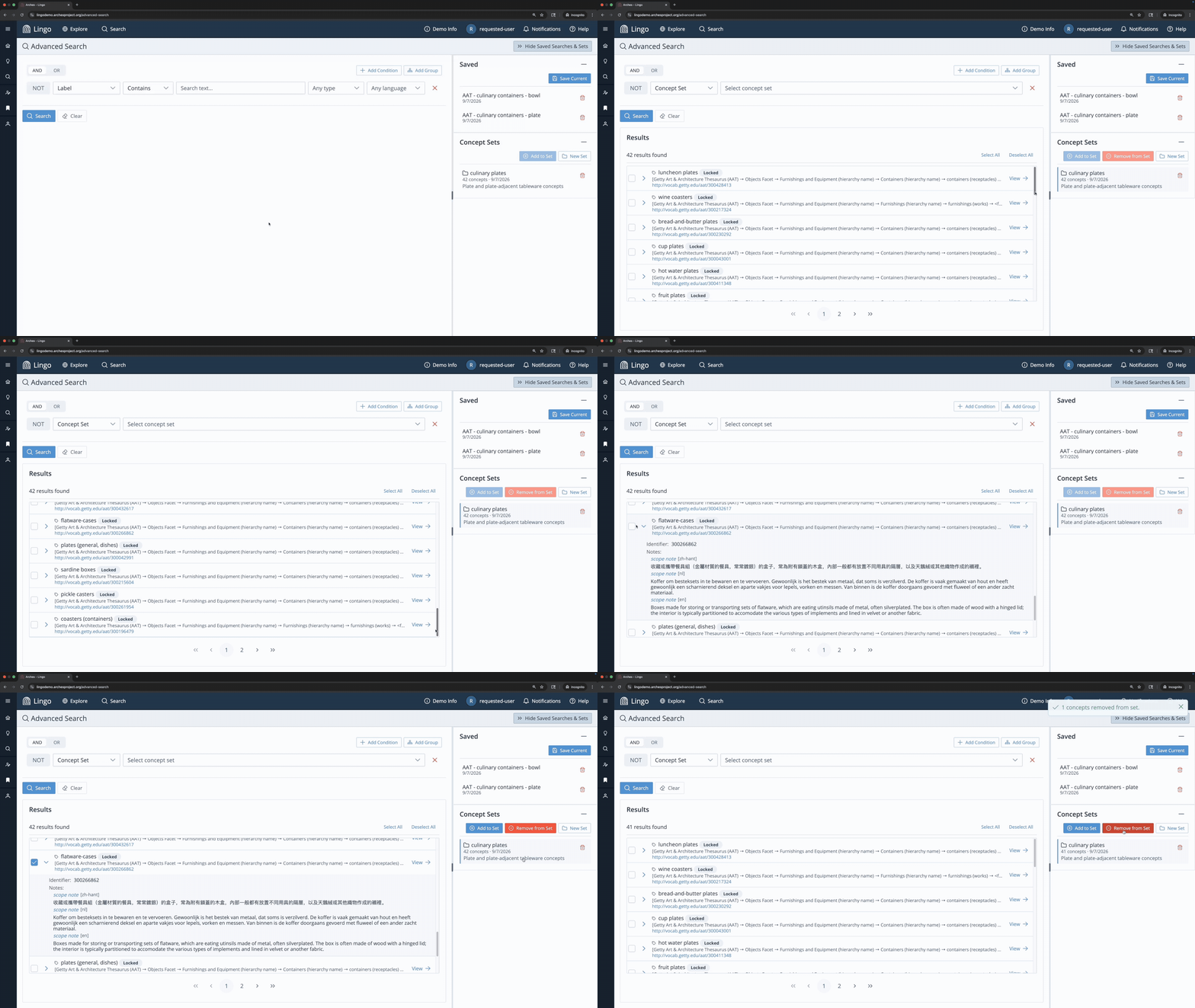
The “flatware-cases” concept is defined as “boxes made for storing or transporting sets of flatware, which are eating utensils made of metal, often silverplated.” It was pulled into the search results because its scope note contains “silverplated,” which contains the string “plate.” This is the same kind of substring match that surfaced “plateau” and “twiffler” earlier.
To add more concepts, run a new advanced search, select your concepts, and click Add to Set, and choose the Concept Set from the dropdown, and click Add.
→ Build a new query for concepts in the FISH Archaeological Objects Thesaurus, under the “Food and Drink Serving Container” whose labels or notes contain the string “dish.” Select the relevant plate concepts, click Add to Set, and add them to the “culinary plate” Concept Set.
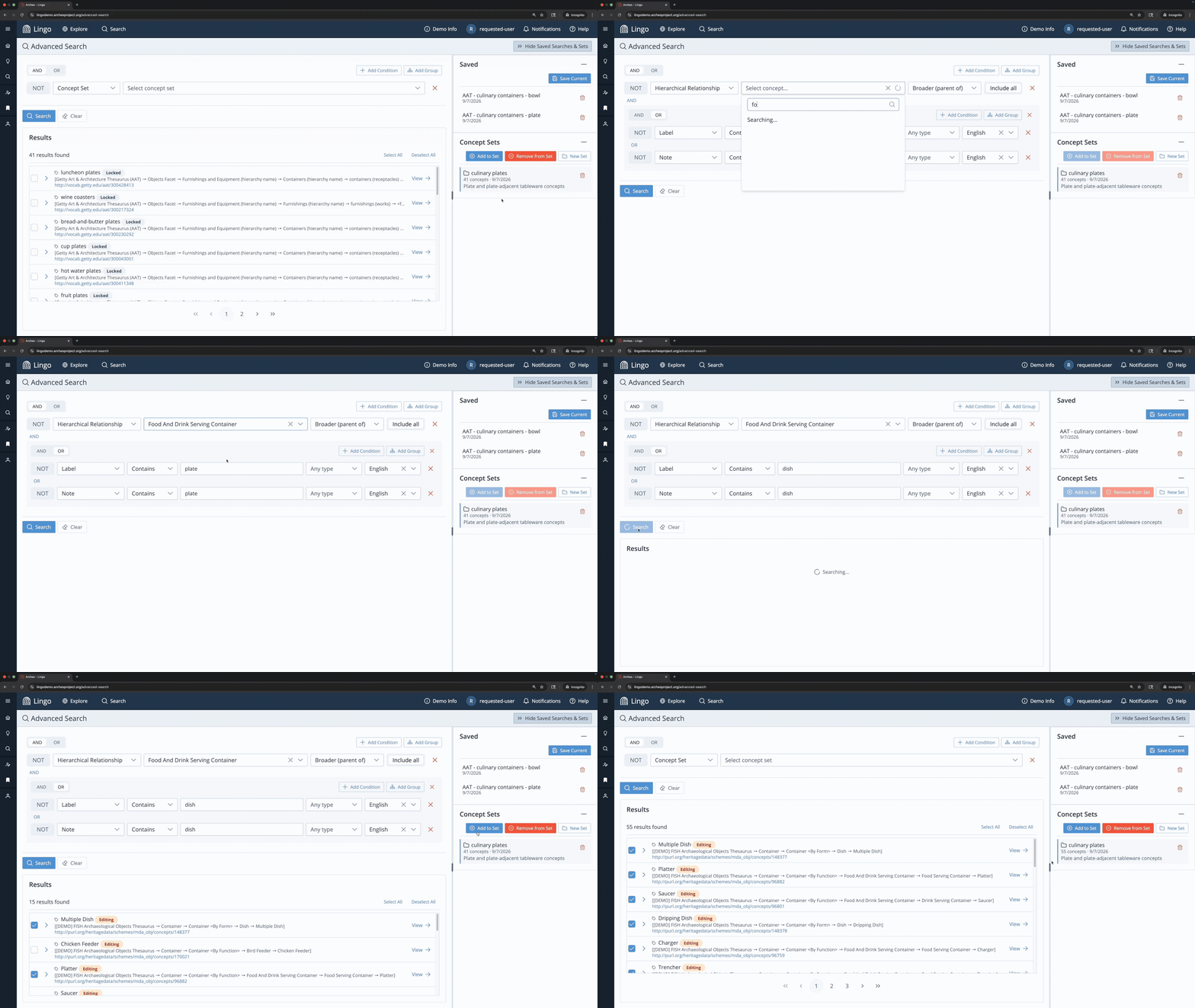
Click the red trash can icon next to a Concept Set to permanently delete it.
Concept Sets are only visible to individual users and are not shared across accounts.
You can easily access Concept Sets in the Explore panel by selecting the Concept Sets tab. If you have a concept record open, you can add it to the set by clicking Add current concept. Quickly remove concepts from the Concept Set by selecting concepts and clicking Remove from Set.
→ Open Quick Search and search for “celery dish” and select the concept from the AAT scheme to open the concept record. Click Explore and open the Concept Sets tab. Open the “culinary plate” Concept Set. Click Add current concept. Select the “pickle caster” concept. Click Remove from Set.
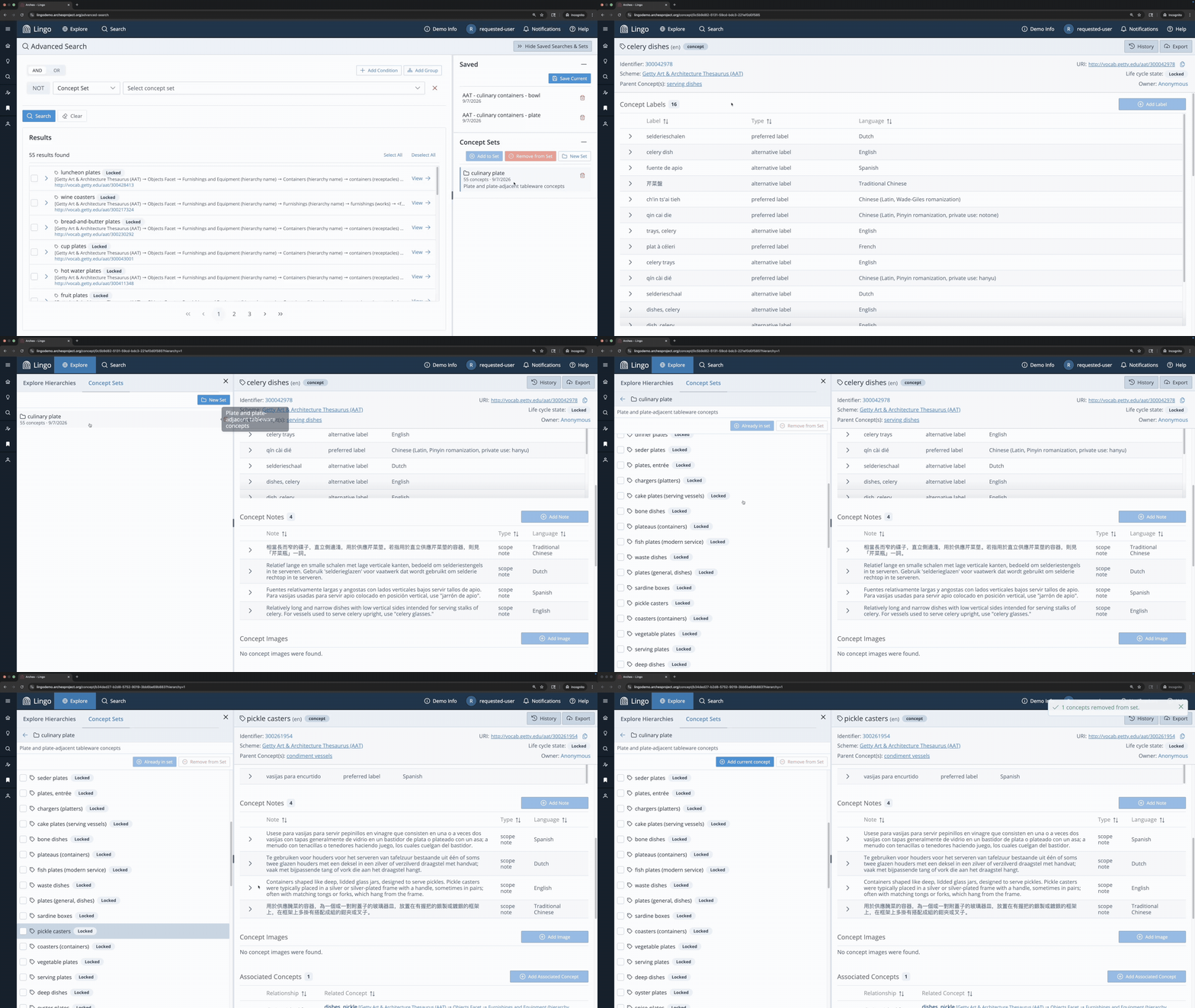
The concept “pickle caster” is another example of a concept being pulled into the search results because its scope note contains “silverplated,” which contains the string “plate.”
Localization
(Disabled in the demo site)
The internationalization of Arches Lingo supports full localization of the application. A language selector makes it possible to use the interface in multiple languages and scripts, including right-to-left languages like Arabic. When the language is switched, concepts display their preferred term in the selected language, where available.
See a language switch from English to Spanish to Arabic in the clip below, and learn more about Lingo localization on the Translating the Arches UI webpage.
Add Reference Data
(Requires an account with editing functionality)
Reference data refers to Contributors and Sources–supporting information that can be linked throughout a scheme or concept to document who contributed to or is cited within a vocabulary.
Add a Contributor
Contributors are people and organizations. A Contributor can be linked to a scheme label or note, as well as to scheme rights as the right holder. A Contributor can also be linked to a Concept Label or Note, as well as to relationships with Associated and Matched Concepts.
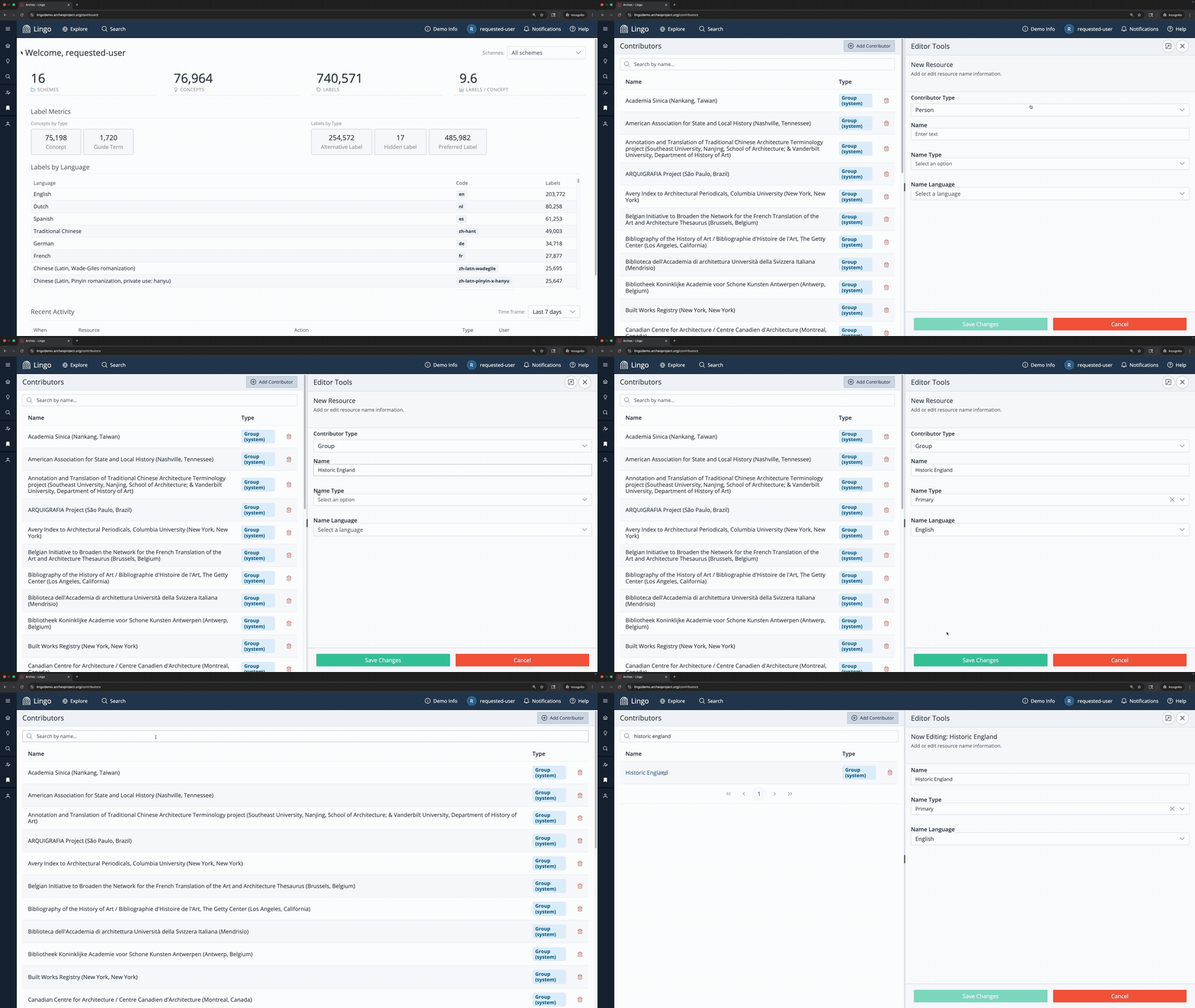
To add a new Contributor, go to the Contributors page, then click Add Contributor. In the Editor Tools panel, select the Contributor Type (Person or Group), enter the full name, then select a Name Type and Language. Click Save Changes.
Existing Contributor records can be edited by clicking the name to reopen the Editor Tools panel. Click the red trash can icon next to a Contributor to permanently delete it.
→ Go to the Contributors page, click Add Contributor, and enter the following:
- Contributor Type: Group
- Name: “Historic England”
- Name Type: Primary
- Name Language: English
Add a Source
Sources are bibliographic references and can be linked to a Scheme Label or Note, as well as to Scheme Standards. A Source can also be linked to a Concept Label or Note, as well as to relationships with Associated and Matched Concepts.
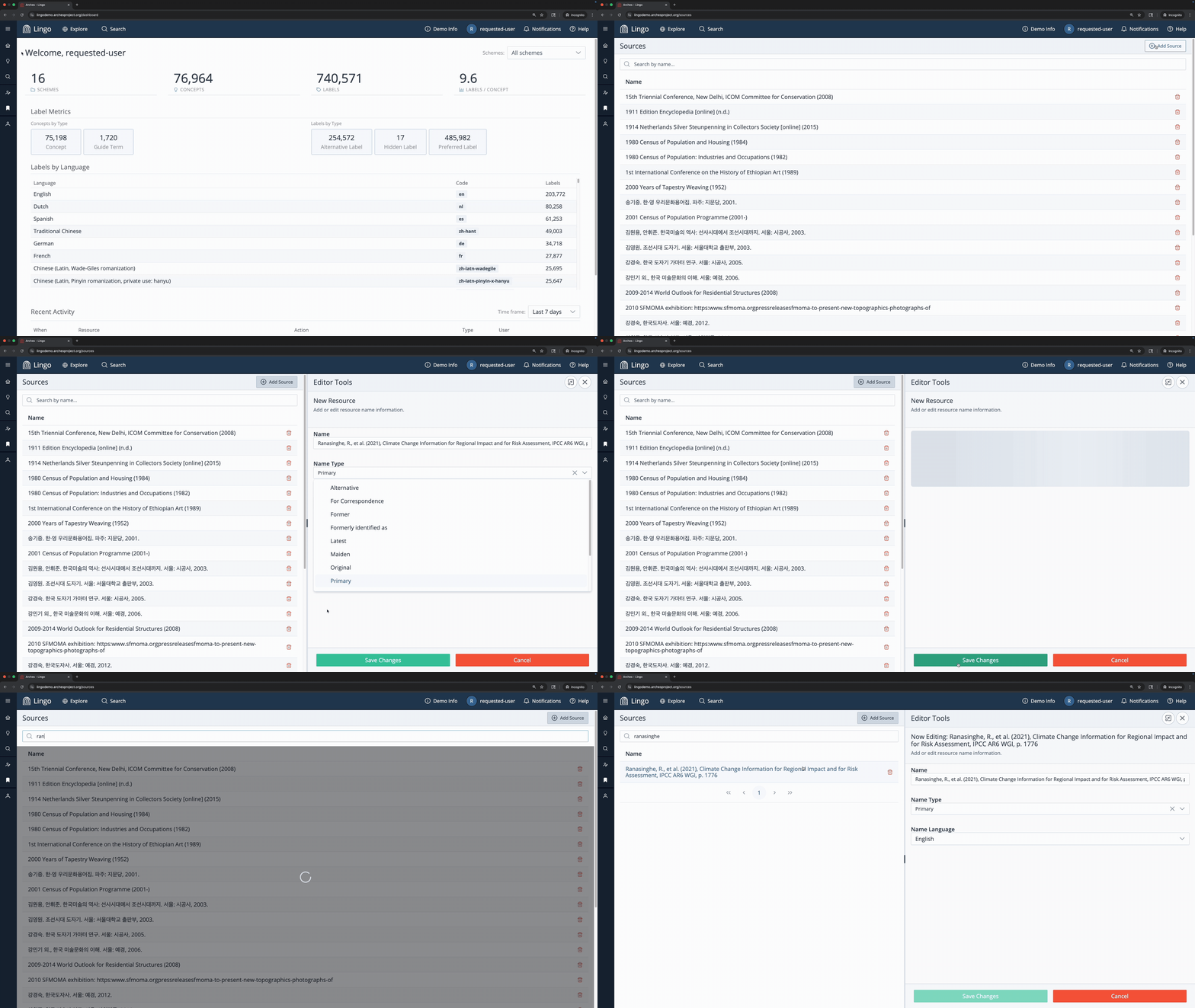
To add a new Source, go to the Sources page, then click Add Source. In the Editor Tools panel, enter the bibliography reference, select a Name Type and Language. Click Save Changes.
Existing Source records can be edited by clicking the name to reopen the Editor Tools panel. Click the red trash can icon next to a Source to permanently delete it.
→ Go to the Sources page, click Add Source, and enter the following:
- Name: “Ranasinghe, R., et al. (2021), Climate Change Information for Regional Impact and for Risk Assessment, IPCC AR6 WGI, p. 1776″
- Name Type: Primary
- Name Language: English
Add a Scheme
(Requires an account with editing functionality)
Arches Lingo supports adding new schemes two ways: importing an existing scheme as a SKOS RDF/XML file, or building a scheme and its concepts from scratch within the application.
Create a New Scheme in Arches Lingo
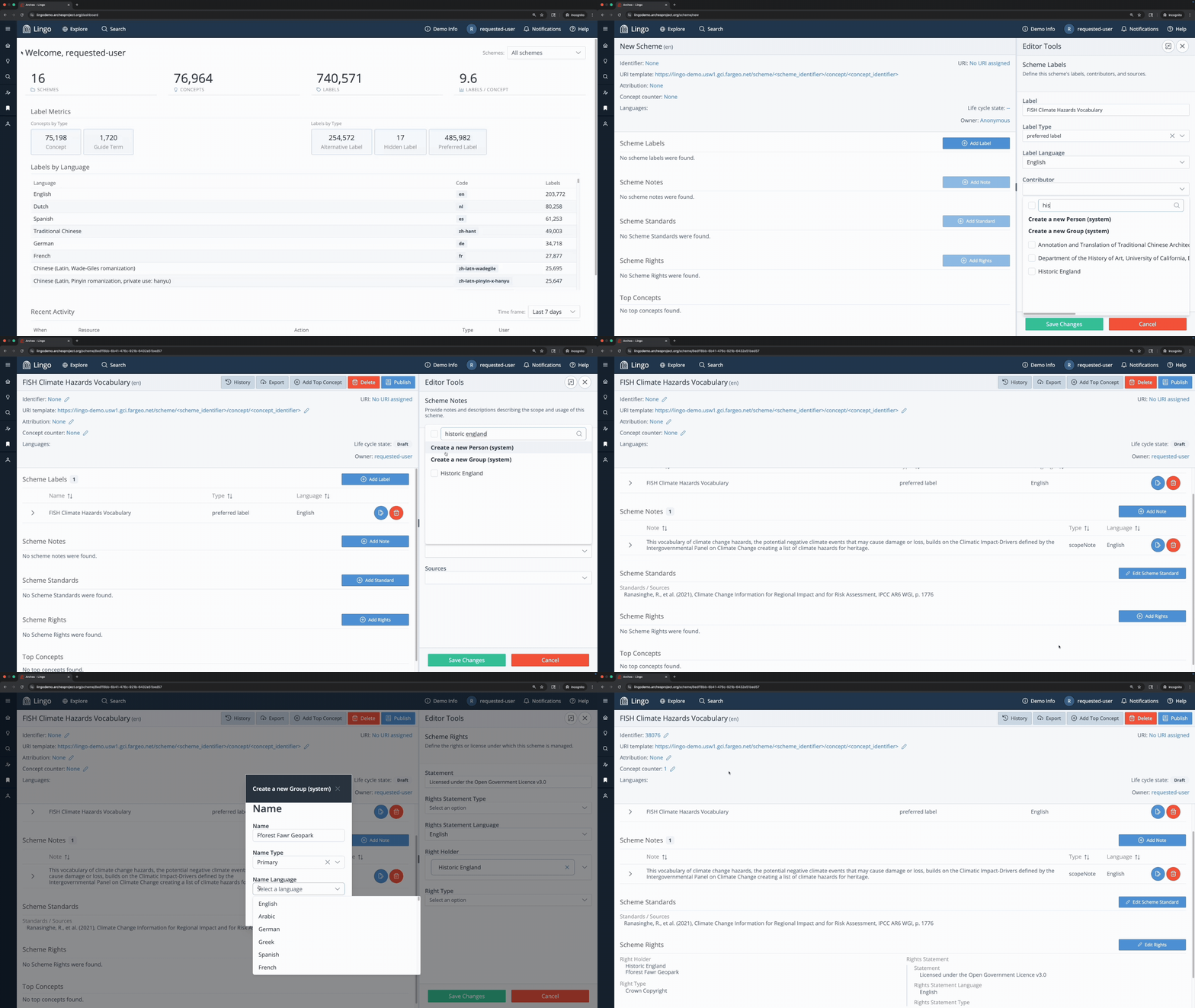
Go to the Schemes & Concepts page and click New Scheme. This opens the scheme report, where the Editor Tools panel prompts you for a Scheme Label, which must be entered before any additional details can be added. Click Save Changes before closing the Editor Tools panel (Lingo warns you before navigating away from a page with unsaved edits).
Scheme Labels, Scheme Notes, Scheme Standards, and Scheme Rights are all edited the same way through the Editor Tools panel: click Add next to a section to fill in a new entry then click Save Changes. To edit an existing entry, click the pencil icon 
 . Most of these sections can hold more than one entry.
Each scheme has the following sections:
- Scheme Labels – the name(s) of the scheme. Define the Type and Language, and optionally link Contributors and Sources. A scheme must have a preferred label. A scheme does not show a display term (visible in the Explore panel and at the top of the scheme report) if a label lacks a Type and a Language. A scheme can have only one preferred label per language. Saving a second preferred label in the same language returns a validation error.
- Scheme Notes – description(s) of the scheme’s scope and use. Define the Type and Language, and optionally link to Contributors and Sources.
- Scheme Standards – the standard(s) this scheme implements, linked to a Source.
- Scheme Rights – a statement about the license or rights the scheme is managed under. Include the Statement Language, Right Holder (Contributor), and Right Type.
- Top Concepts – the scheme’s Top Concepts automatically populate here after they are created. Click Add Top Concept at the top of the scheme record, or the “+” next to the scheme in the Explore panel to start building out the hierarchy.
Scheme Record Details:
Unlike the sections above, the following details are shown directly in the scheme record header, not edited through the Editor Tools panel. Some are values you set once (like Identifier or Concept counter); others are calculated automatically from the scheme’s content (like Languages or Lifecycle state).
Editable:
- Identifier – an alphanumeric identifier for the scheme, which is used in the scheme and concept URI templates. Entering an identifier is necessary for URI generation.
- URI template – the pattern used to mint stable linked-data URIs for every concept when the scheme is published. Use the placeholders <scheme_identifier> and <concept_identifier> to build the URI structure.
- Concept counter – the starting number for auto-incrementing concept identifiers. Set this before publishing. Once identifiers have been assigned the counter is locked.
- Attribution – document scheme-specific attribution information
Generated Automatically:
- Languages – a list of all languages included within the scheme, along with a count of the number of labels in that language.
- URI – the scheme’s permanent identifier, built from the Identifier and URI template. Reads as “No URI assigned” until the scheme is published.
- Lifecycle state – the current lifecycle state of the scheme.
- Owner – the account responsible for creating the scheme.
URIs are minted the first time a scheme is published. See the “Scheme and Concept Lifecycle States” tutorial below for more information.
→ Create a test scheme yourself by using the FISH Climate Hazards Vocabulary. Go to the Schemes and Concepts page and click New Scheme and enter the following details:
- Scheme Label: “FISH Climate Hazards Vocabulary”
- Label Type: preferred label
- Label Language: English
- Contributor: Select “Historic England” from dropdown
- Scheme Note: “This vocabulary of climate change hazards, the potential negative climate events that may cause damage or loss, builds on the Climatic Impact-Drivers defined by the Intergovernmental Panel on Climate Change creating a list of climate hazards for heritage.”
-
- Note Type: description
- Note Language: English
-
- Scheme Standards: Select “Ranasinghe, R., et al. (2021), Climate Change Information for Regional Impact and for Risk Assessment, IPCC AR6 WGI, p. 1776” from the dropdown
- Scheme Rights:
- Statement: “Licensed under the Open Government Licence v3.0”
- Rights Statement Language: English
- Right Holders:
- Select “Historic England” from dropdown
- Click Create a New Group:
- Name: “Fforest Fawr Geopark”
- Name Type: Primary
- Name Language: English
- Right Type: Crown Copyright
- Identifier: “38076″ (issued by FISH)
- Concept counter: “1”
Import a Scheme
To import a scheme already in SKOS RDF/XML format, go to the Schemes & Concepts page and click Import Thesauri. Choose the file and click Upload File.
A pop-up confirms your import is being processed; you’ll be notified in the Notifications panel once it’s complete. The scheme’s hierarchical structure, scheme and concept labels, notes, and relationships are preserved.
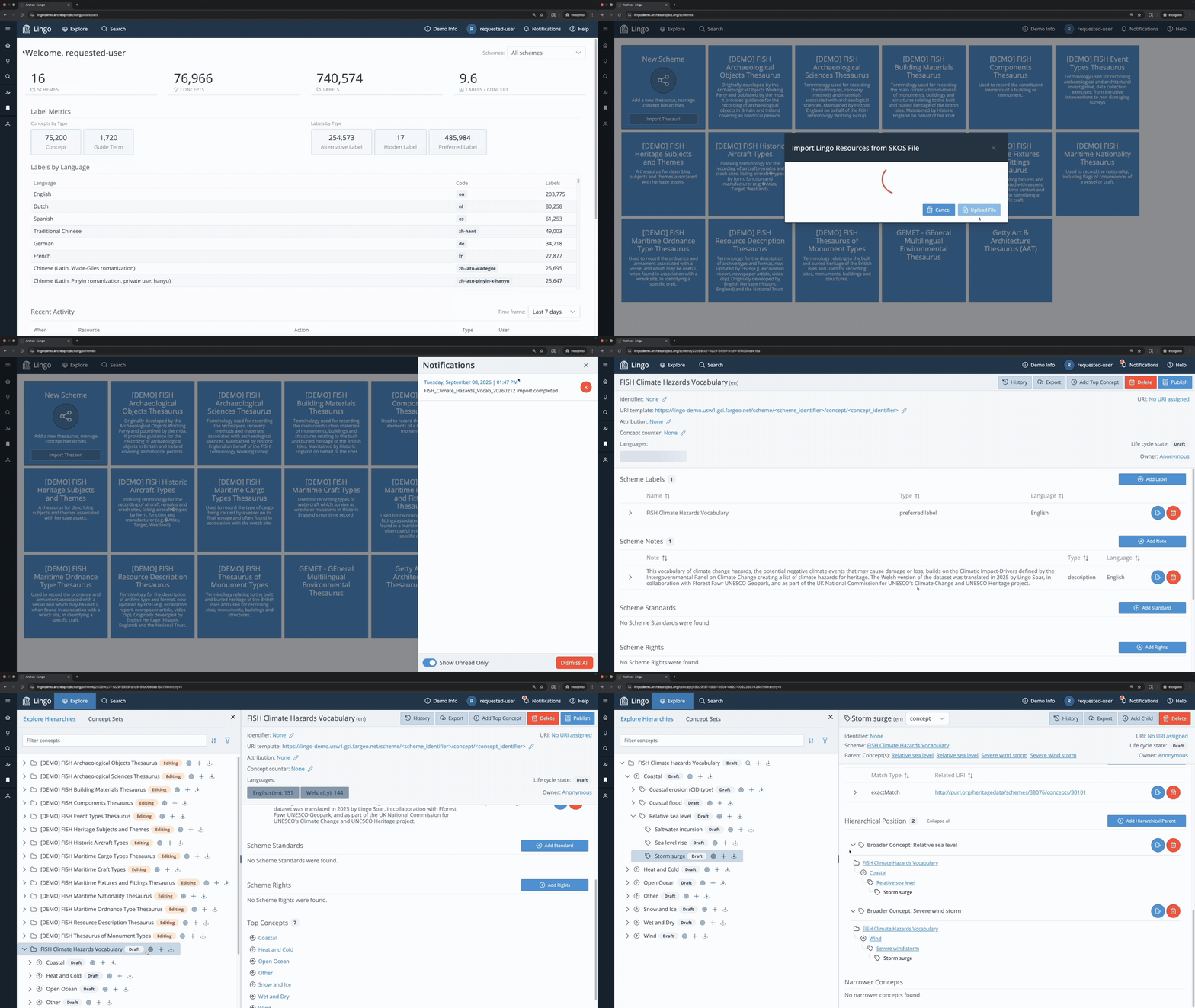
Importing a scheme in SKOS RDF/XML format is quicker than building it by hand. Here you can see labels, notes, and matched concepts imported with their Type and Language intact, and the scheme’s hierarchical structure preserved.
Add a Concept
(Requires an account with editing functionality)
To start, add a Top Concept to the scheme you created in the previous step. Go to the scheme report and click Add Top Concept, or open the Explore panel and click the “+” next to the scheme name.
After adding a new concept, you land on the concept report. The Editor Tools panel will prompt you for a Concept Label, which must be entered before any additional details can be added. Click Save Changes before closing the Editor Tools panel (Lingo warns you before navigating away from a page with unsaved edits).
Concept sections–Concept Notes, Concept Images, Associated Concepts, Matched Concept–work the same way: click Add next to a section to fill in a new entry then click Save Changes. Click the pencil icon to edit an existing entry.
Each concept has the following sections:
- Concept Labels – the terms(s) used for the concept. Define the Type, Language, Status, and time span over which it was used, and optionally link Contributors and Sources. A concept does not show a display term (visible in the Explore panel and at the top of the concept report) if a label lacks a Type and a Language. A concept can have only one preferred label per language. Saving a second preferred label in the same language returns a validation error. Concepts that lack a preferred label in a given language show up in the Dashboard’s Missing Translations list.
- Concept Notes – note(s) that define and provide context for the concept. Define the Type, Language, Status, and time span over which it was used, and optionally link Contributors and Sources.
- Concept Images – images that help illustrate features of the concept, with a title and description.
- Associated Concepts – concepts in this scheme that are related to this concept, without a broader/narrower relationship. Define the Relation, Status, time span, and optionally link Contributors and Sources.
- Matched Concepts – concepts from other schemes that correspond to this concept. Define the Relation (i.e., broadMatch, closeMatch, exactMatch, narrowMatch, relatedMatch), Status, time span, and optionally link Contributors and Sources.
- Top Concept Of/Hierarchical Position – for top concepts, this populates automatically with the scheme name. For all other concepts, this populates automatically with all parent concepts up to the scheme.
- Narrower Concepts – populates automatically with narrower concepts, hyperlinked. Clicking one opens its concept report and highlights its position in the Explore panel.
Concept Record Details:
Unlike the sections above, the following details are shown directly in the concept report header, not edited through the Editor Tools panel. Unlike a scheme’s record details, every field here is populated automatically; a concept has no editable record-level fields of its own.
- Identifier – assigned when a scheme is published using the scheme Concept Counter.
- Scheme – the scheme the concept belongs to.
- URI – the concept’s permanent identifier, built from the scheme identifier, concept identifier, and scheme URI template. Reads as “No URI assigned” until the scheme is published.
- Lifecycle state – the current lifecycle state of the concept.
- Owner – the account responsible for creating the concept.
Use this hierarchical listing of the FISH Climate Hazards Vocabulary to build out the hierarchy, with Coastal, Heat and Cold, Open Ocean, Other, Snow and Ice, Wet and Dry, and Wind being the top concepts. Use the alphabetical listing of the FISH Climate Hazards Vocabulary to find scope notes (starred), alternative labels (UF/Used For), as well as broader concepts (BT/Broader Term), narrower concepts (NT/Narrower Term), and top concepts (TT/Top Term).
→ Go to the FISH Climate Hazards Vocabulary and click Add Top Concept. Create the Top Concept “Coastal”
- Concept Label: “Coastal”
- Label Type: preferred label
- Label Language: English
- Concept Note: “Climatic Impact-Drivers associated primarily with the land and sea interface.”
- Note Type: scope note
- Note Language: English
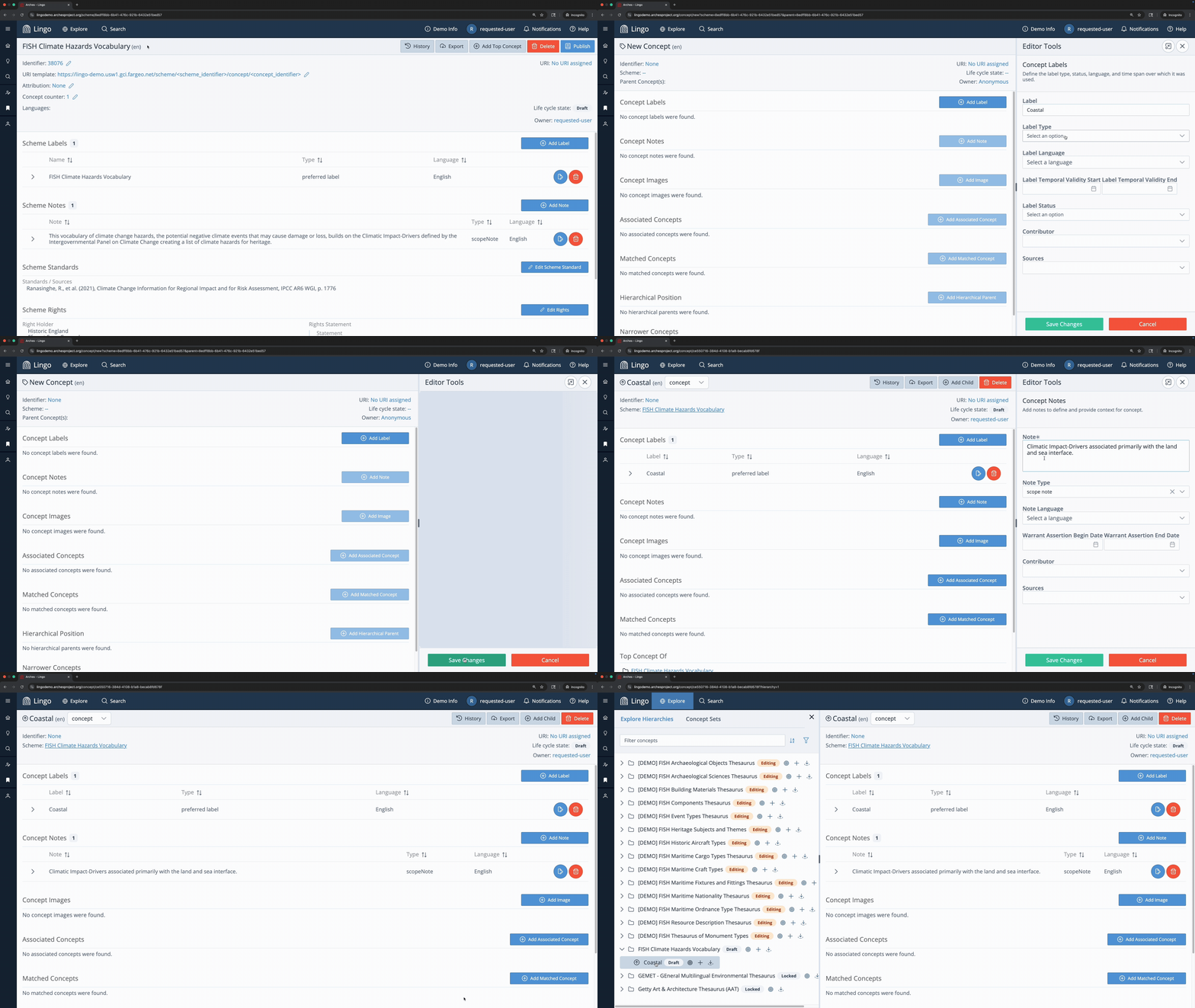
→ Create the Narrower Concept “Storm surge”
- Concept Label: “Storm surge”
- Label Type: preferred label
- Label Language: English
- Concept Label: “Tidal surge”
- Label Type: alternative label
- Label Language: English
- Concept Note: “Rise of sea level due to high storm winds”
- Note Type: scope note
- Note Language: English
- Concept Image: (download this image from Wikimedia Commons and upload it to Lingo: https://commons.wikimedia.org/wiki/File:Hurricane_Idalia_storm_surge_St._Petersburg,_Florida_2.jpg)
- Image Title: “Hurricane Idalia storm surge in St. Petersburg, Florida”
- Image Description: “August 30, 2023. Photo: Adog, CC BY-SA 4.0, via Wikimedia Commons”
- Matched Concept: (GEMET “flooding” concept)
- Matched Concept: “http://www.eionet.europa.eu/gemet/concept/4687”
- Matched Concept Relation: broadMatch
- Matched Concept Relation Status: current
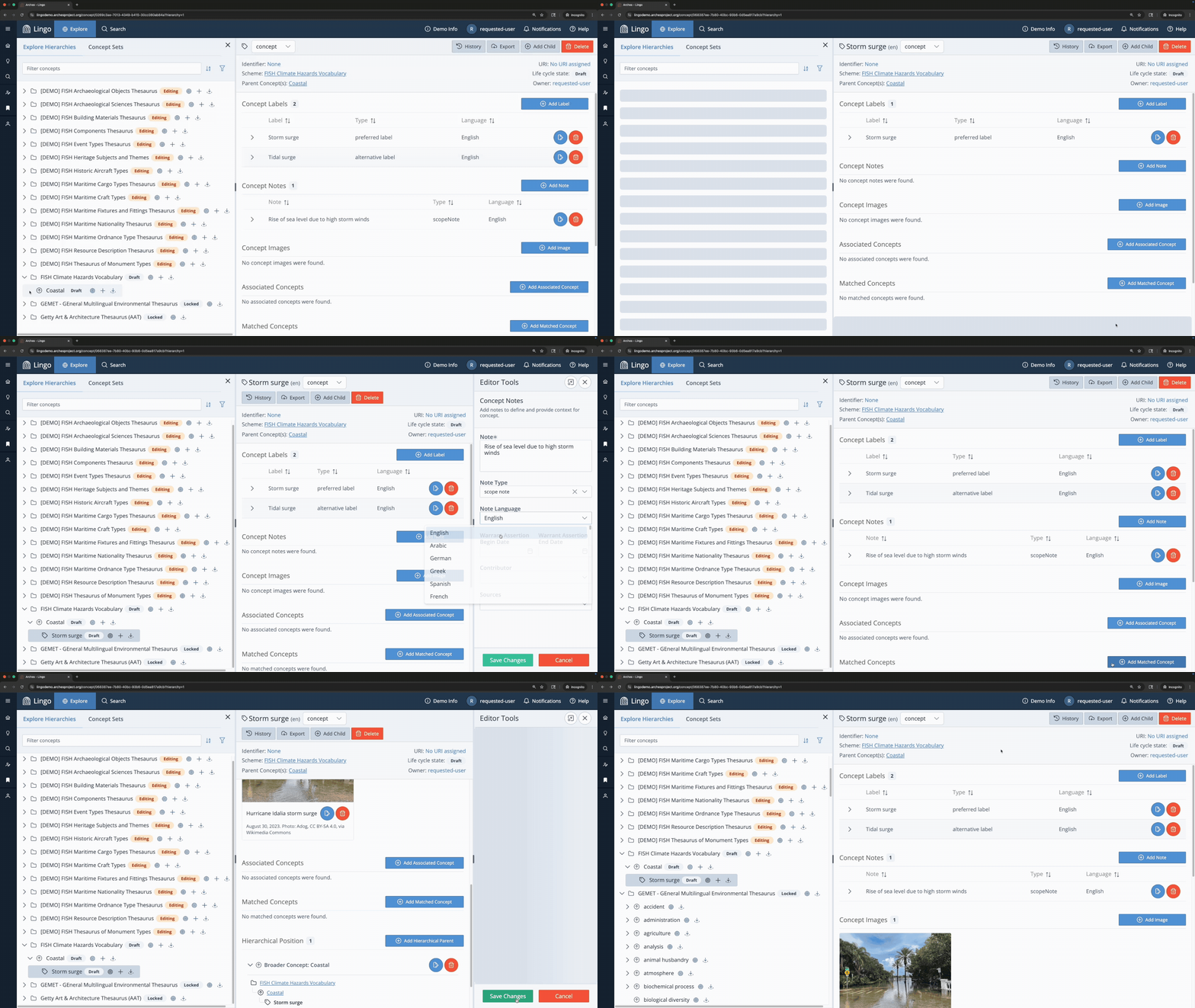
If you click on the URI of a matched concept that has a record in Arches Lingo, you will be brought to the report for that concept (the concept “flooding” from GEMET, in this case).
Create a Guide Term
Many widely used vocabularies utilize guide terms to help structure and organize a large hierarchy. These terms are simply to help users navigate the hierarchy, and are not intended to be referenced as proper concepts. To switch a concept to a guide term, go to the concept report, find the “concept” dropdown next to the concept display term at the top, and switch to “guide term.”
Icons in the hierarchy panel will help you quickly identify the type.
 Folders indicate schemes
 Upward pointing arrows indicate top concepts
 Double sideways arrows indicate guide terms
 Tags indicate concepts
 For the Getty AAT only, a concept tree indicates a hierarchy name
Scheme and Concept Lifecycle States
(Requires an account with editing functionality)
Every scheme and concept has a lifecycle state that tracks its maturity from initial creation through to publication and eventual retirement, helping vocabulary managers and editors know what actions are available at each stage and ensuring published URIs stay stable and citable once shared.
Note: Deleting or retiring a scheme or concept always requires confirmation. Deleted schemes and concepts cannot be brought back, while retired schemes and concepts can be reinstated. Deleting or retiring a scheme cascades to all its concepts. Deleting or retiring a concept with a child concept prompts you to either attach the children to the parent, or delete/retire them along with any other descendants.
Lifecycle State: Draft
Every newly created scheme and its concepts begin in the Draft state, where both can be freely edited and deleted.To delete a scheme, go to the scheme report and click Delete. To delete a concept, go to the concept report and click Delete.
Lifecycle State: Published
A scheme can be published when it is ready to be used.
Go to the header in the scheme report, check that a scheme identifier has been entered, and click Publish. A URI is minted for the scheme using the scheme identifier and URI template. The Lifecycle state badges in the report header and Explore panel change from “Draft” to “Published.”
This change cascades to all the scheme’s concepts: identifiers are assigned and URIs are minted for each, using the scheme identifier, URI template, and concept counter. A published scheme and its concepts cannot be edited or deleted.
→ Open the FISH Climate Hazards Vocabulary scheme and click Publish.
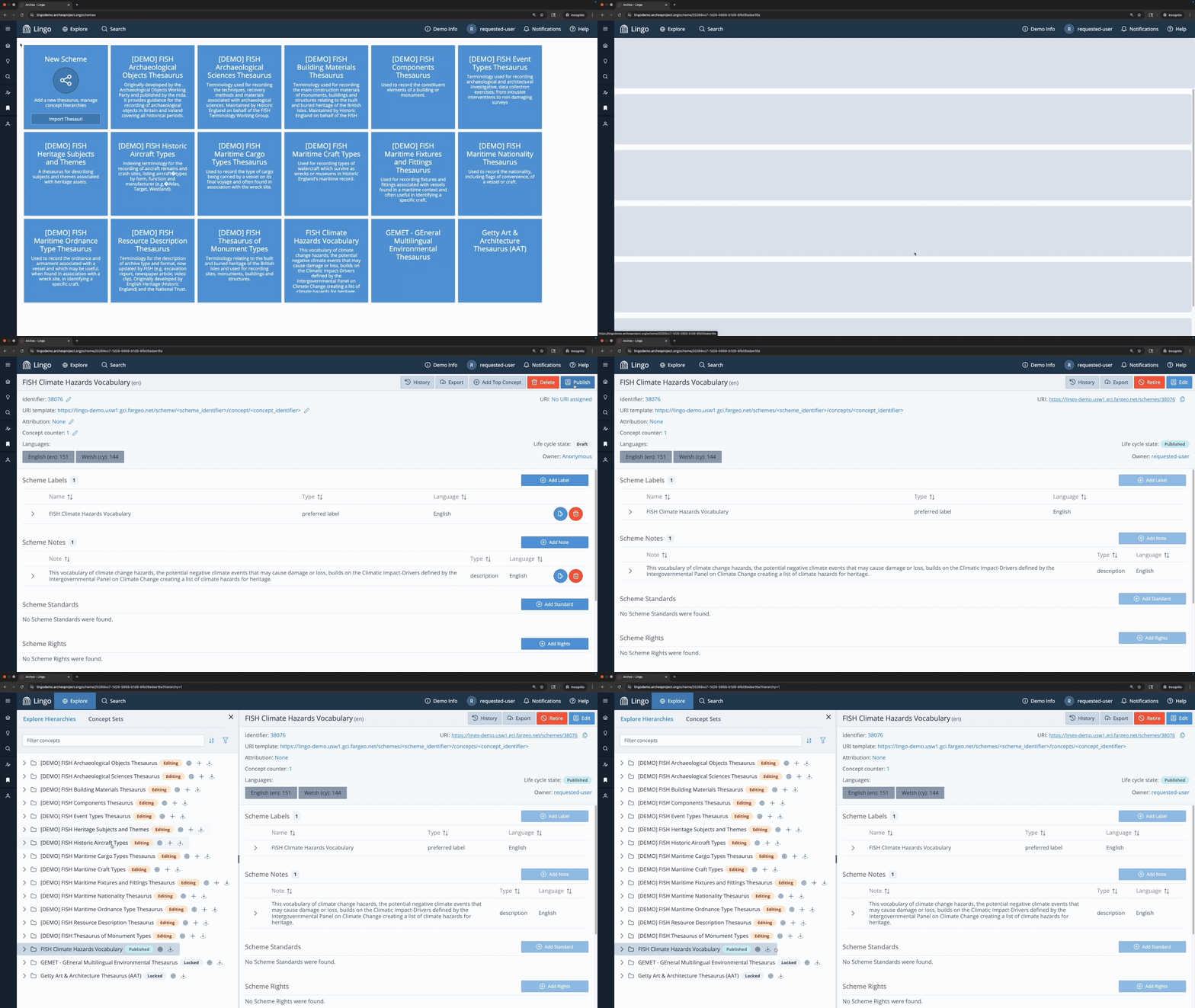
Here you can see the FISH Climate Hazards Vocabulary scheme now has a URI, its badge changed to “Published,” and the record is no longer editable.
Lifecycle State: Editing
A Published scheme can be moved to the Editing state at any time, allowing changes and additions to the scheme and its concepts–including retiring a concept, covered below.
Go to the scheme report and click Edit. The lifecycle state badges in the report header and Explore panel change from “Published” to “Editing.” New concepts can be added, and existing ones edited.
→ Open the FISH Climate Hazards Vocabulary scheme report and click Edit. Add “Storm flood” as an English alternative label.
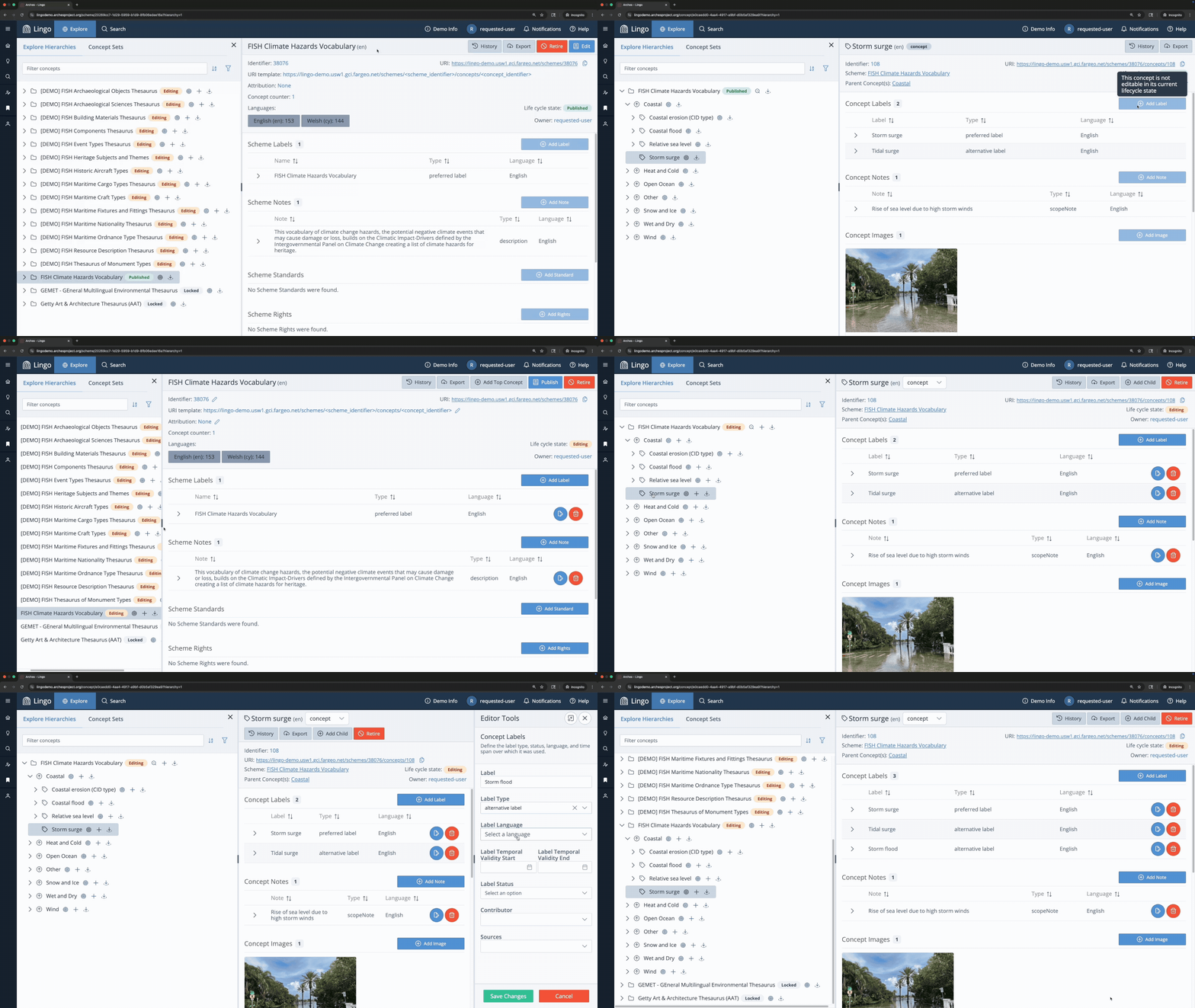
Here you can see the concept is not editable in the “Published” state. After moving it to the “Editing” state, the concept can be edited freely.
After editing is complete, the scheme can be moved back to the Published state, minting URIs for any newly created concepts. Schemes can move between Editing and Published as many times as needed.
Edit History
Every scheme and concept keeps a history of past edits: what action was taken, by whom, and when.
If a scheme or concept is in the Draft or Editing state, you can revert to a previous edit from this history. Once published, a record’s history remains visible, but reverting isn’t available until the record is moved back into the Editing state.
Open a scheme or concept report and click History to open the Edit History panel. Click Revert to here to undo the edit(s).
→ Open the concept report for “Storm surge,” click History, and revert to a previous edit.
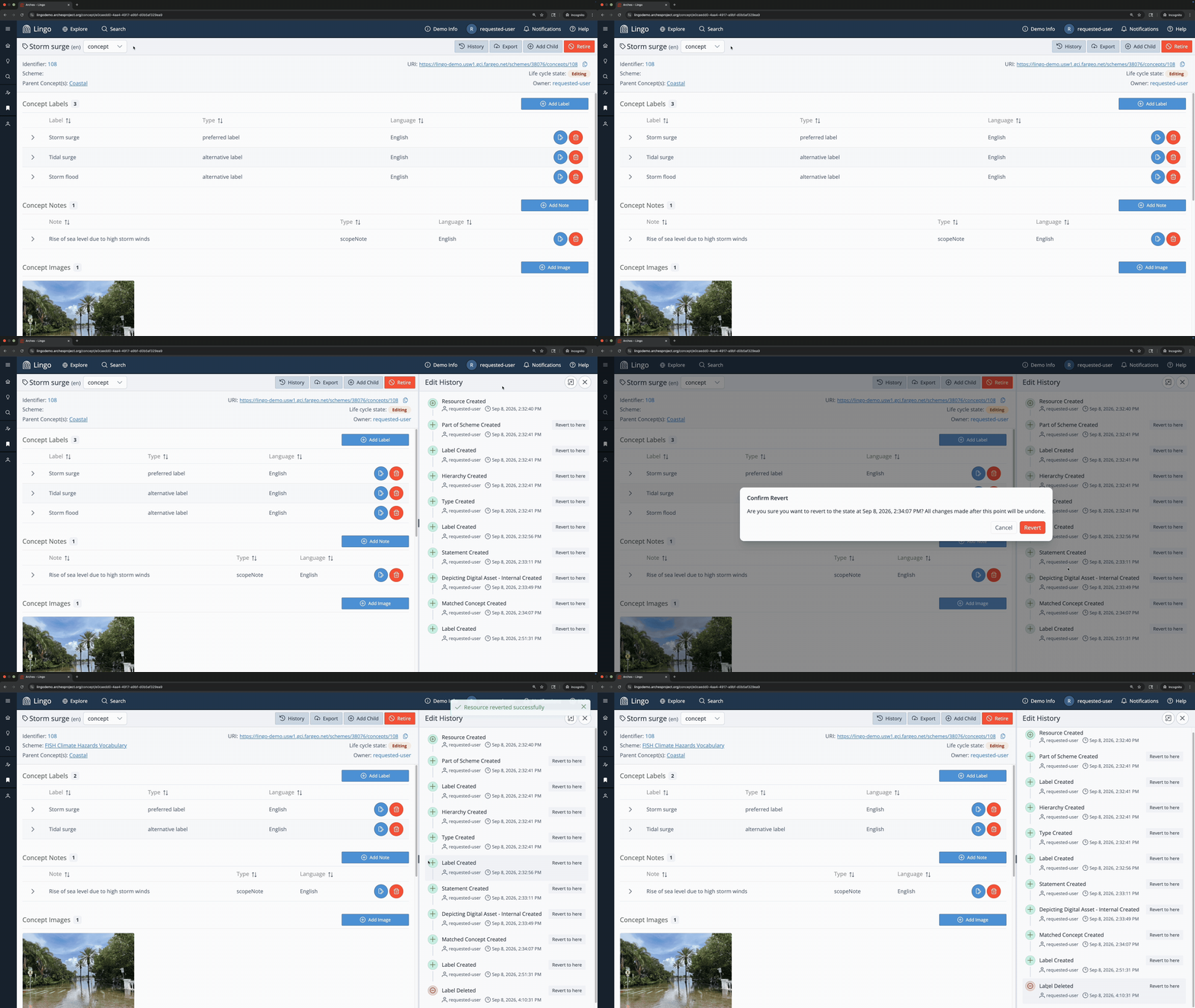
Here you can see that the alternative label “Storm flood” was removed, with an audit trail of all edits, including deletions, in the Edit History panel.
Lifecycle State: Retired
Once published, a scheme or concept can no longer be deleted, only retired. Retiring preserves the record and keeps its URI resolvable for future reference. Retiring a concept requires its scheme to be in the Editing state. Retiring a scheme is possible in both the Published and Editing states, and cascades the Retired state to all its concepts. Retired schemes and concepts cannot be edited, but they can be reinstated, if needed, bringing them back to the Editing state.
Go to the scheme or concept report and click Retire. A confirmation message will appear. Click Retire for schemes or Deprecate for concepts. Retired schemes and concepts remain visible in the Explore panel, but appear struck out, with the lifecycle state badge changed to “Retired.”
To reinstate a retired scheme or concept, go to the report and click Edit. A confirmation message will appear. Click Reinstate. A scheme must be in the Editing state for a retired concept to be reinstated.
→ Open the FISH Climate Hazards Vocabulary scheme, which should be in the Editing state. Open the report for the “Storm surge” concept and click Retire. When the confirmation message appears, click Deprecate.
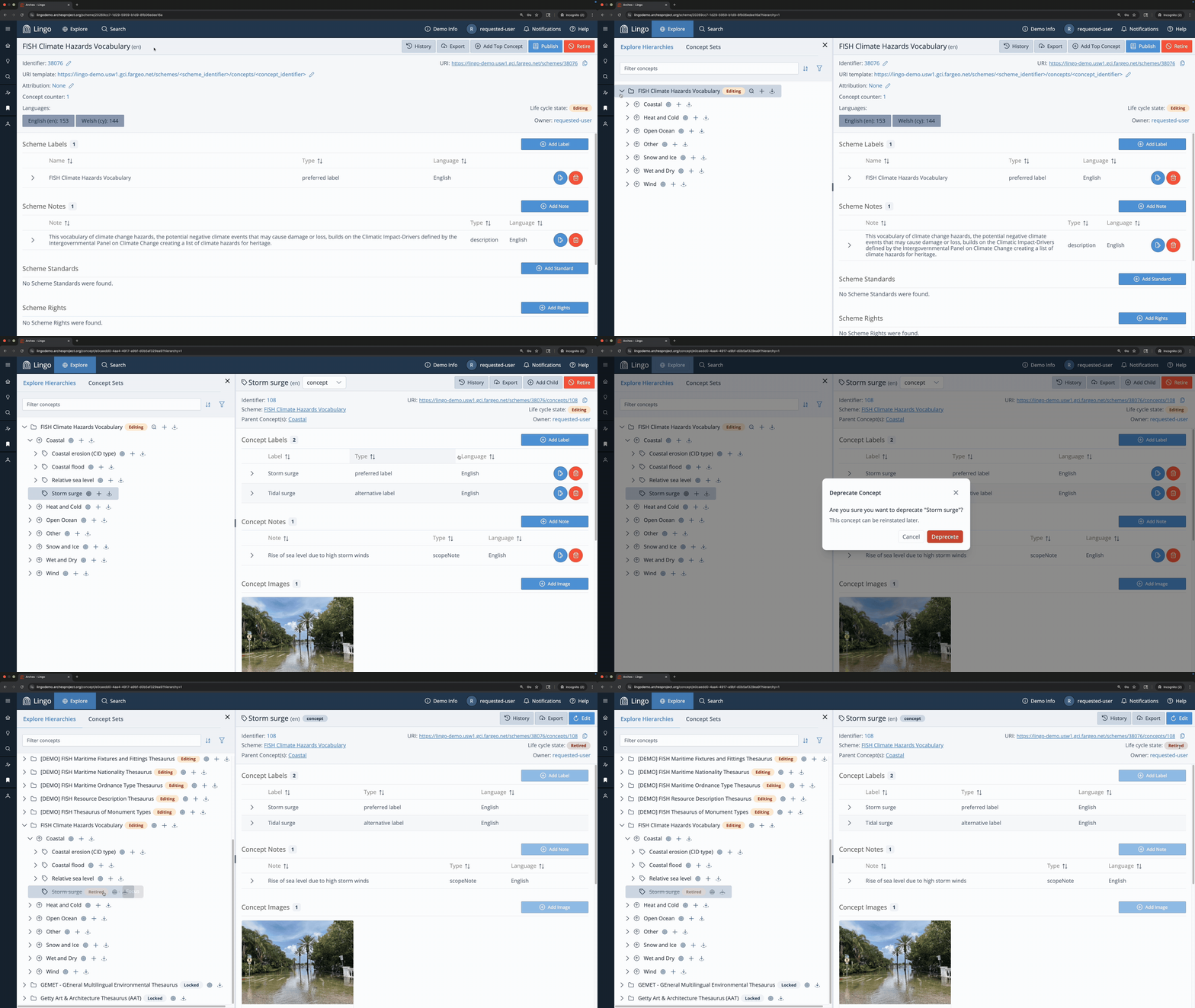
Here you can see that “Storm surge” now has a “Retired” tag, but is still visible in the Explore panel and its record is still accessible, but uneditable.
→ Open the FISH Climate Hazards Vocabulary scheme report and click Retire. When the confirmation message appears, click Retire.
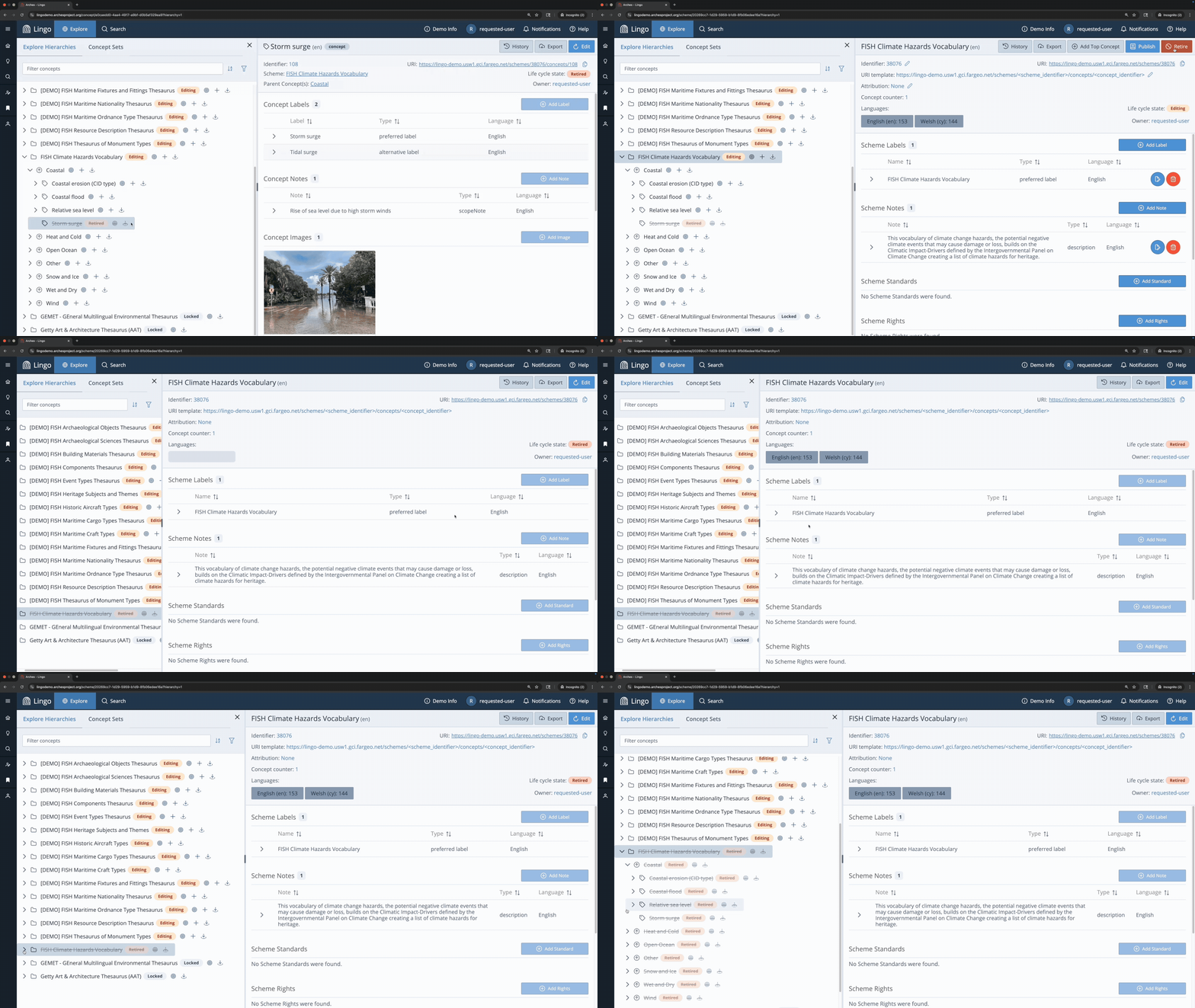
Here you can see the scheme has a “Retired” tag, and is uneditable. The scheme and its concepts are still visible in the Explore panel, but are struck out.
→ Open the scheme report for the FISH Climate Hazards Vocabulary scheme and click Edit to reinstate the scheme. When the confirmation message appears, select “Reinstate this scheme and all its concepts” and click Reinstate.
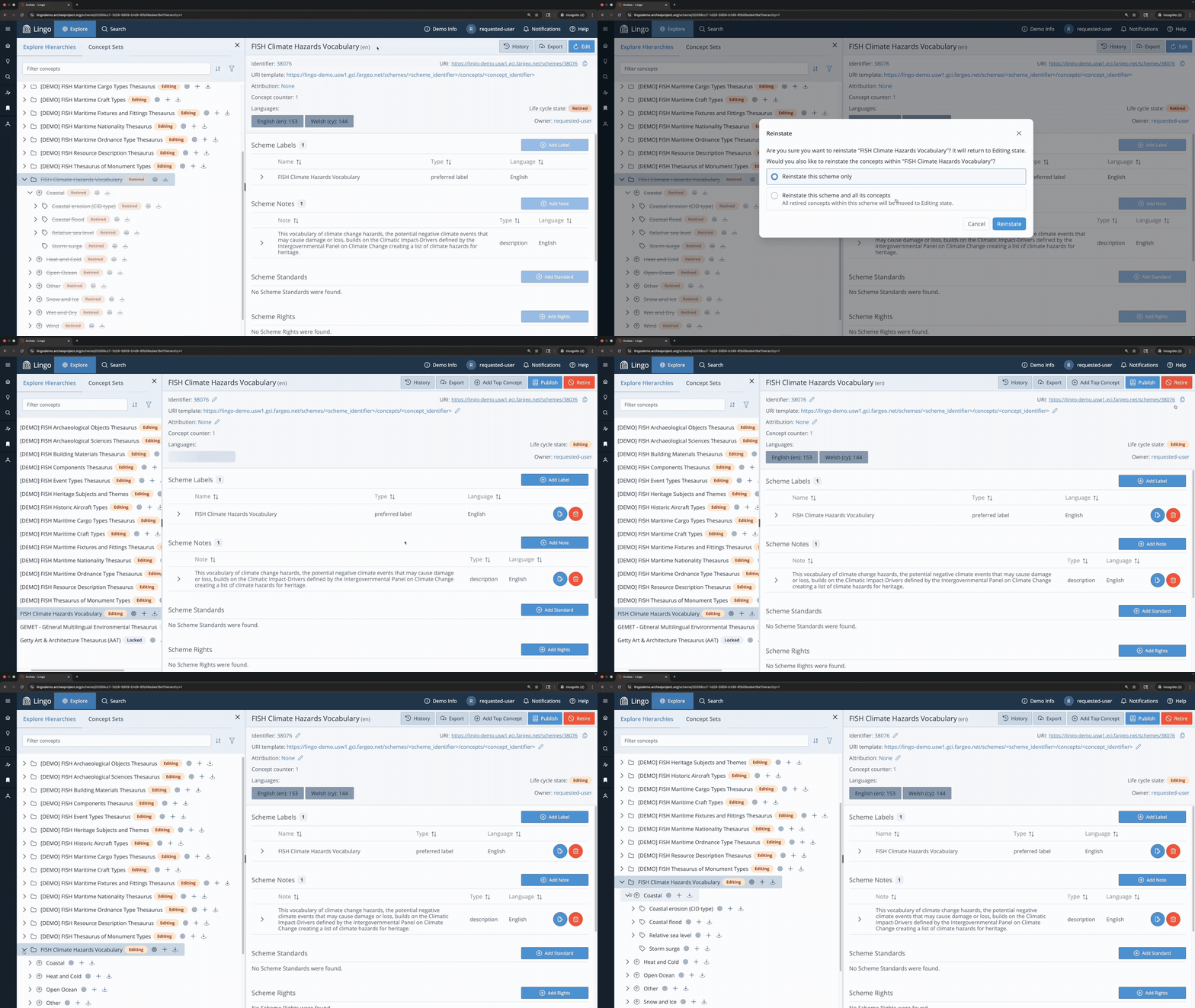
Here you can see the scheme and all of its concepts are back to the Editing state.
Lifecycle State: Locked
(Requires Lingo Admin access)
The locked state can only be applied by Lingo Admin users, a higher permission level than the editing access covered in this tutorial. Locked schemes and their concepts cannot be edited until the scheme is unlocked by a Lingo Admin user. A scheme can be moved to the locked state from the Draft, Published, or Editing states.
The Getty AAT and GEMET schemes loaded in this demo are both configured to be locked, so their content can be explored but not edited.
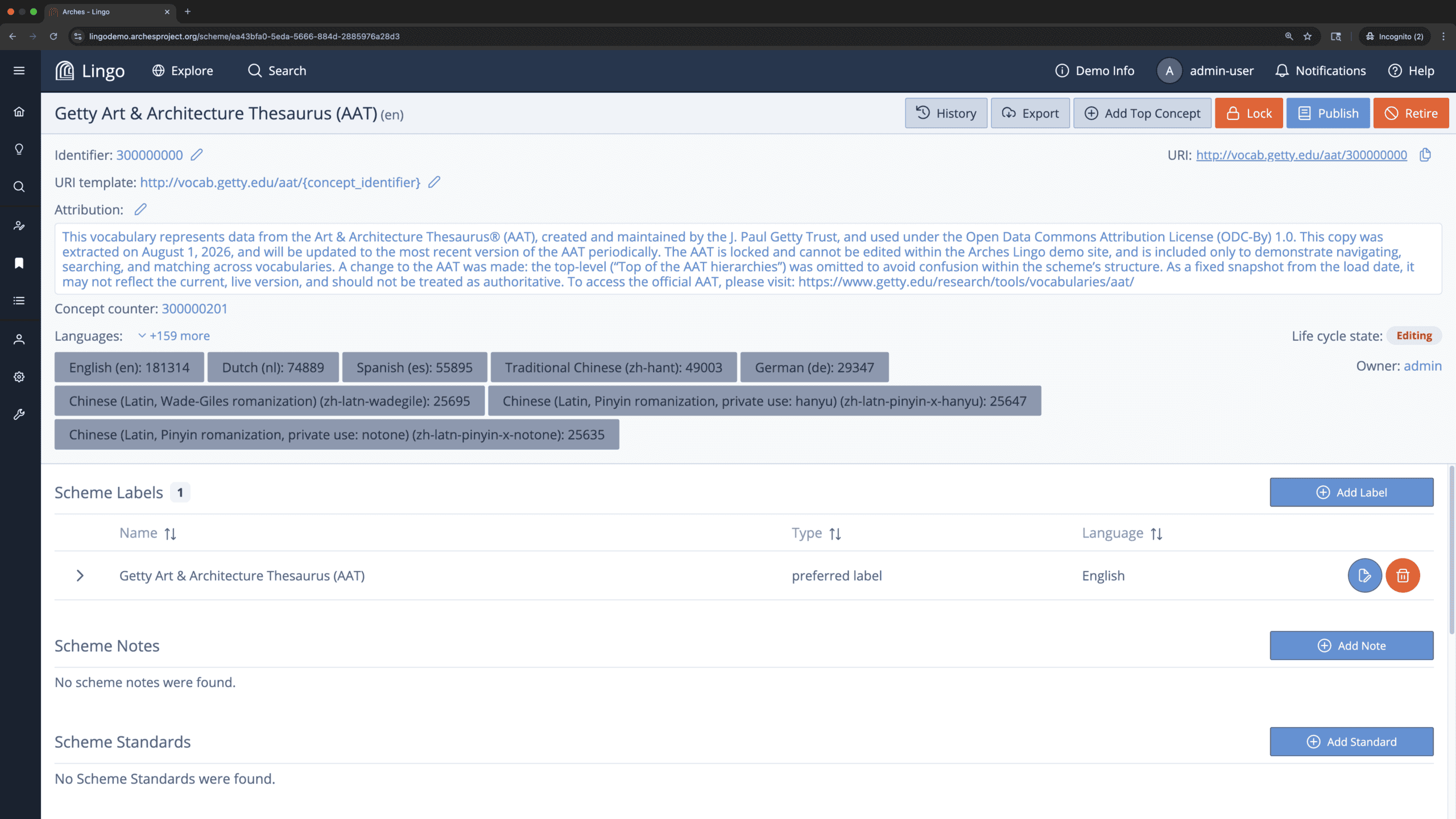
Above you can see a Lingo Admin user view of an unlocked scheme with the Lock button visible.
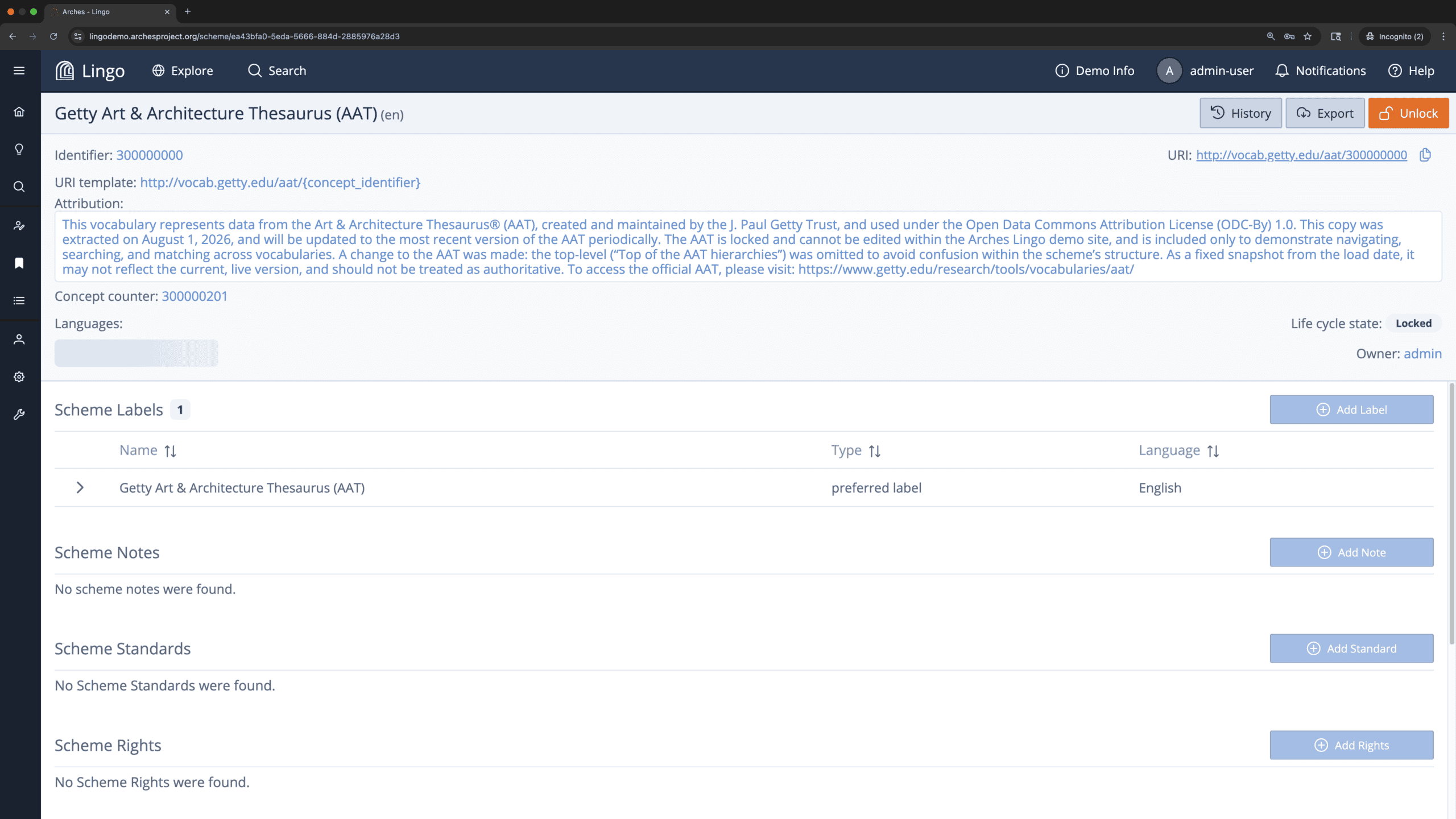
Above you can see a Lingo Admin user view of a locked scheme with the Unlock button visible.
Export
Arches Lingo allows for the export of schemes, allowing the application to act as a portal for disseminating vocabulary data both within an organization, and for external users. Exported schemes can be loaded into the Arches Controlled List Manager of an Arches implementation, or non-Arches systems.
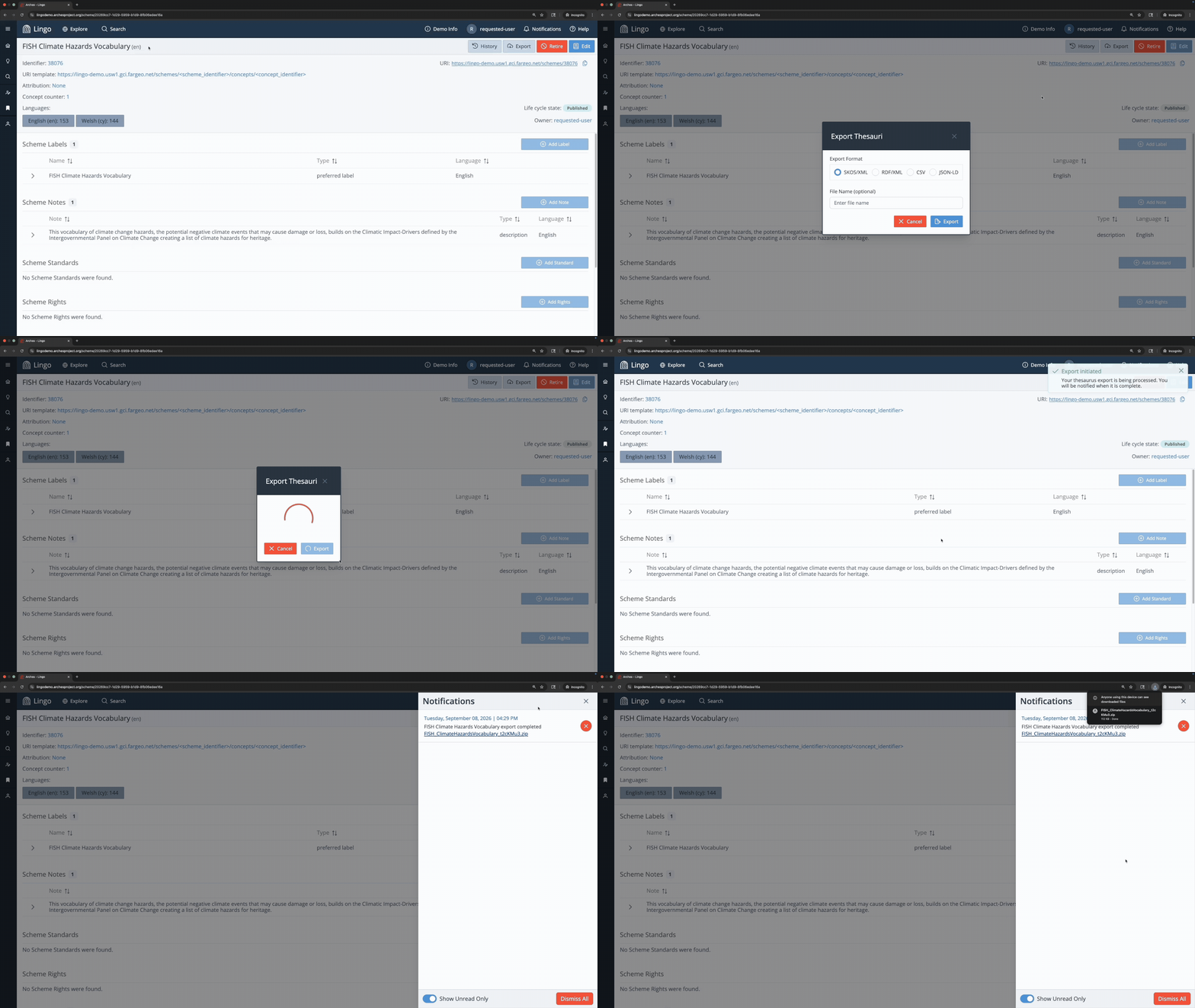
Go to the scheme report and click Export at the top of the report, or click the export icon  next to the desired scheme in the Explore panel. A pop-up window prompts you to select an export format (SKOS/XML, RDF/XML, CSV, or JSON-LD) and optionally name the file. Click Export. You will be notified in the Notifications panel when the export is complete. Click the file to begin the download.
→ Go to the scheme record for the FISH Climate Hazards Vocabulary, click Export. Select the SKOS/XML format, enter a file name, and click Export.
To stay informed about the Arches Project and Arches software tools (including any new information regarding this demo), please follow us on social media via Facebook, LinkedIn, BlueSky, Mastodon, or Twitter. If you have any questions regarding Arches, please visit the Arches Community Forum, where you can search for answers or post new questions.